Evidence-backed Windows capture guide
How to screen record with system audio on Windows
Choose MP4, select a region, enable System audio, set the pointer and microphone deliberately, and record a short rehearsal. Open the finished file, seek through it, listen with headphones, and verify that notifications, private tabs, and unintended microphone audio are absent.
Watch the 42-second Capture tourKeyword focus: screen record with system audio WindowsRecord a Windows walkthrough as H.264 MP4 with AAC system audio or microphone input, then verify duration, picture, sound, and privacy before publishing.
Plan the recording before pressing Record
Write the opening state, three or four actions, and the final result. Close private tabs, disable notifications, and move unrelated files away. A 30-second rehearsal often catches audio routing, pointer scale, and window placement problems before a long take.
Choose the audio path explicitly
System audio records sound played by Windows. Microphone records the selected input device. Silent mode records neither. Headphones reduce feedback when system sound and a live microphone are both active. Windows N editions may need the Media Feature Pack before Media Foundation encoding is available.
Record to a native, reviewable file
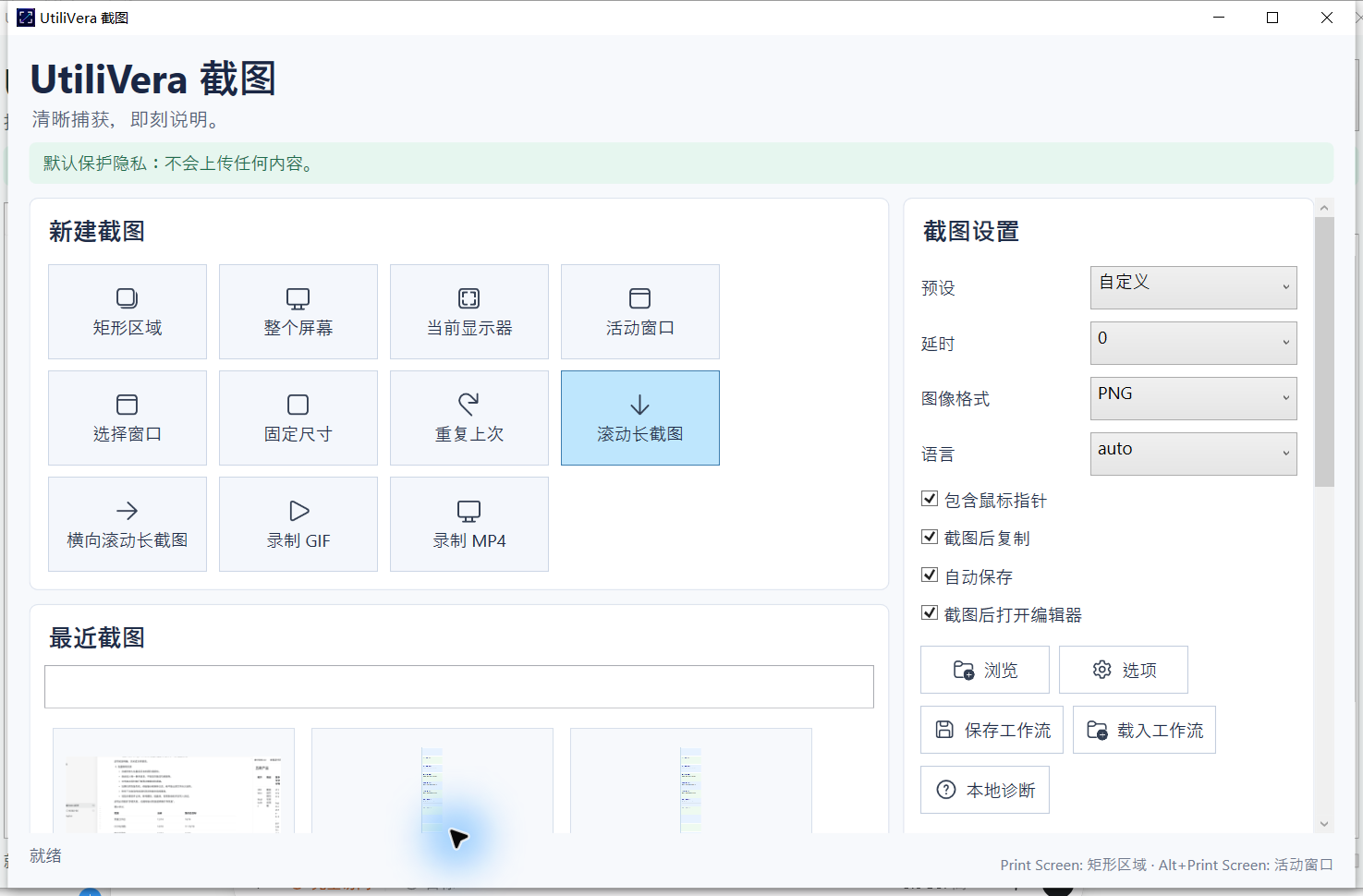
UtiliVera uses Windows Media Foundation to write H.264 video and AAC audio rather than recording a silent file and adding an unexplained track later. The product caps a recording at 30 minutes and exposes cursor and audio choices before the run.
- Choose MP4
- Select the region
- Enable System audio or Microphone
- Set pointer visibility
- Record a rehearsal
- Record the final take
- Play, seek, listen, and inspect before upload
Verify both streams
A file that opens is not enough. Check reported duration, seek near the middle and end, confirm picture movement, listen for the intended sound, and confirm that silent mode has no audio stream. Keep the project source and final MP4 identities separate.
First-party workflow evidence
Controlled input → settings → expected → actual
- Controlled input
- A deterministic Windows audio source and controlled changing video frames.
- Mode and settings
- Frozen 0.6 native MP4 path, H.264 video, AAC system audio, plus independent microphone and silent-mode tests.
- Expected result
- Playable MP4 with non-empty H.264 video and the requested audio stream; silent mode must omit audio.
- Actual 0.6.0 result
- The independent application audit verified three consecutive system-audio runs, one microphone run, and one silent run, with decodable stream evidence.
 Open the full-size interface image
Inspect all 78 named tests · Verify this guide workflow · Verify artifact hashes
Failure modes and limits
DRM-protected content, exclusive audio devices, unavailable codecs, Windows N without media components, and device changes during recording can block capture.
Stop when the capture omits required context, a scroll seam repeats or skips content, a recording stream cannot be decoded, OCR changes a critical value, or a redaction leaves private information visible.
Recovery and verification
Keep the rehearsal, save diagnostics, choose a known audio device, and retry a short clip. Do not publish until playback, seeking, picture, and sound all pass.
Record the application version, capture target, pointer and delay settings, scroll axis or audio choice, output format, and final artifact hash when the result must be reproducible.
Bound to one frozen build
These statements use the 293,888-byte executable with SHA-256 3832C20012F30B07C2D61ACECCAFC9949B4738F065C53D23D2C781D6BCCF5DB7. The product audit passed. The current public installer is unsigned.
Frequently asked questions
Can it record only system sound?+
Yes. Select System audio and leave microphone capture off.
What format does it create?+
The frozen Windows path creates H.264 video in MP4 with AAC when audio is enabled.
Why does recording fail on Windows N?+
Windows N may require Microsoft’s Media Feature Pack for Media Foundation components.
Official and primary sources
Links were checked September 4, 2026. External claims are limited to the cited Microsoft source.
Continue the real workflow
Choose the next UtiliVera tool by task
UtiliVera Capture
Capture deliberately. Verify the output. Share only what belongs.
The unsigned public installer is available now. Review the Windows warning and verify SHA-256 on the release page before running it.
View unsigned download details