Evidence-backed Windows capture guide
How to take a screenshot on Windows
For a quick one-off capture, use Windows Snipping Tool. For a repeatable documentation workflow, choose the smallest useful target in UtiliVera Capture, decide whether the pointer belongs, capture to a separate file, annotate a copy, and inspect the final PNG before sharing.
Watch the 42-second Capture tourKeyword focus: take screenshot WindowsCapture the right region, window, monitor, or full desktop on Windows, preserve the original, and export a clean PNG without exposing unrelated content.
Choose the smallest useful target
A full desktop can reveal notifications, filenames, account names, or a second monitor. Prefer Region for a precise rectangle, Active window for the focused application, Selected window for a deliberate window choice, Current monitor for a single display, and Virtual desktop only when the relationship between displays matters. Fixed size and Repeat last region make a documentation series consistent.
Decide what the screenshot must prove
A support screenshot should show the error and enough surrounding state to explain it. A tutorial screenshot should show the control and the next action. A compliance record may need the original timestamp and an unedited source. Write that purpose down before cropping; otherwise a visually tidy image can lose the evidence that made it useful.
Capture without altering the source
UtiliVera writes a new PNG and keeps the captured bitmap separate from later edits. Delay can give menus time to open. Pointer inclusion is explicit. The frozen workflow used the application’s own active-window capture command, then verified a non-empty PNG and bound its hash to the public evidence record.
- Open the screen you need
- Select Region, Window, Monitor, or Desktop
- Set delay and pointer preference
- Capture
- Save the untouched result
- Annotate and export a separate copy
Inspect before sharing
Zoom to 100%, read every visible title and notification, and check the image edges. If private content is present, crop it out or use permanent black redaction. Blur is useful for visual de-emphasis, but a solid redaction is clearer when the underlying value must not be disclosed.
First-party workflow evidence
Controlled input → settings → expected → actual
- Controlled input
- The frozen UtiliVera Capture 0.6 application window running on a Simplified Chinese Windows system.
- Mode and settings
- Active-window capture through the frozen CLI, PNG output, system-language auto detection, no cloud service.
- Expected result
- A non-empty PNG of the intended window, with the interface automatically localized and no source file overwritten.
- Actual 0.6.0 result
- The controlled run produced the published 1,476 × 970 interface capture and its SHA-256 matched the workflow manifest.
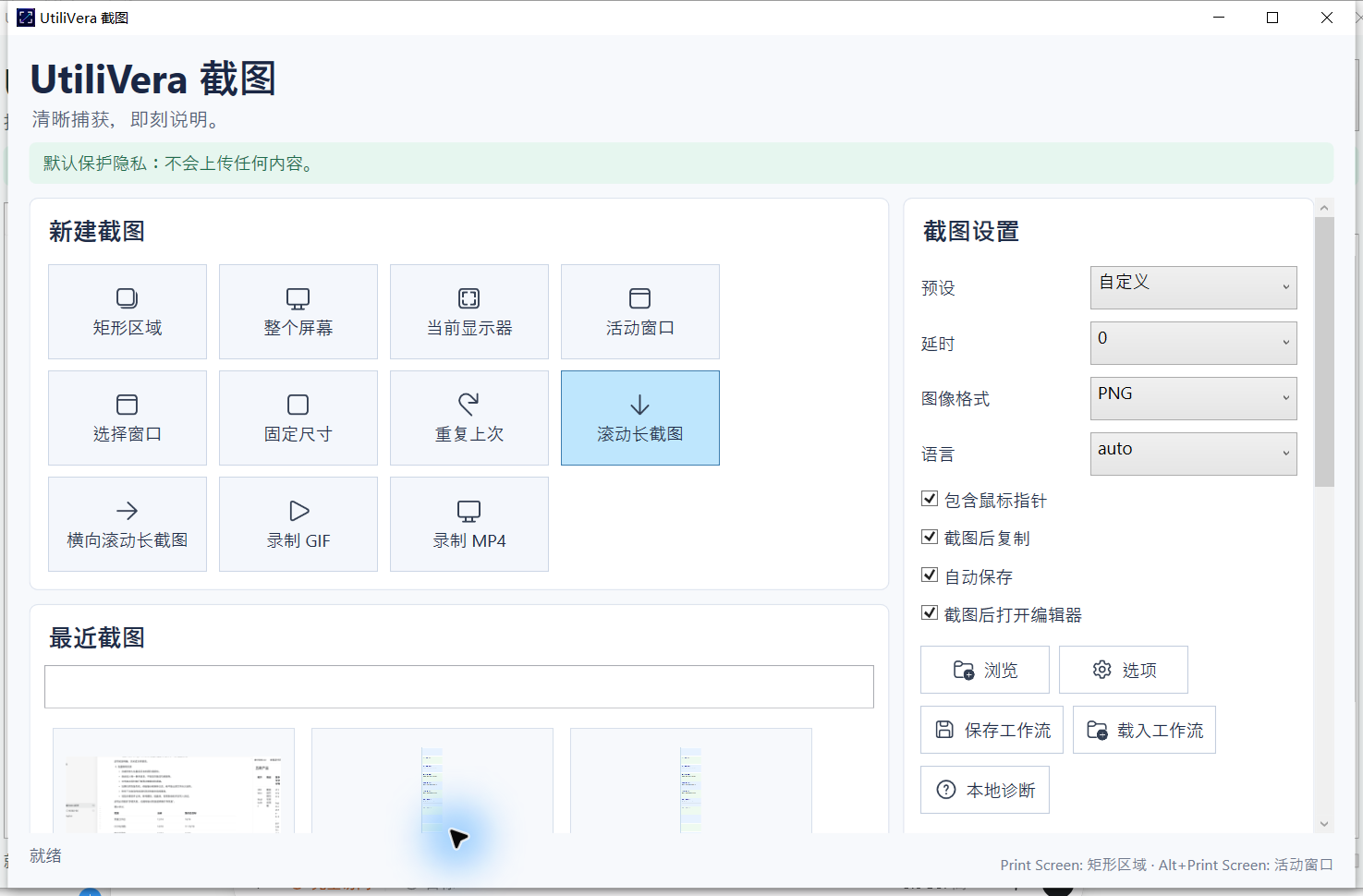 Open the full-size interface image
Inspect all 78 named tests · Verify this guide workflow · Verify artifact hashes
Failure modes and limits
Protected video, hardware overlays, elevated windows, transient menus, and GPU surfaces can behave differently. A screenshot proves only the pixels captured at that moment.
Stop when the capture omits required context, a scroll seam repeats or skips content, a recording stream cannot be decoded, OCR changes a critical value, or a redaction leaves private information visible.
Recovery and verification
Keep the original PNG, save annotations to a .uvcap project, and export a separate deliverable. Re-capture when the target or context is incomplete.
Record the application version, capture target, pointer and delay settings, scroll axis or audio choice, output format, and final artifact hash when the result must be reproducible.
Bound to one frozen build
These statements use the 293,888-byte executable with SHA-256 3832C20012F30B07C2D61ACECCAFC9949B4738F065C53D23D2C781D6BCCF5DB7. The product audit passed. The current public installer is unsigned.
Frequently asked questions
What is the fastest Windows screenshot shortcut?+
Windows + Shift + S opens Snipping Tool capture on current Windows versions.
Should I use PNG or JPEG?+
Use PNG for interfaces, text, diagrams, and evidence. JPEG is smaller for photographic content but introduces compression artifacts.
Can I capture a specific window?+
Yes. Active window captures the focused window; Selected window lets you choose deliberately before capture.
Official and primary sources
Links were checked September 4, 2026. External claims are limited to the cited Microsoft source.
Continue the real workflow
Choose the next UtiliVera tool by task
UtiliVera Capture
Capture deliberately. Verify the output. Share only what belongs.
The unsigned public installer is available now. Review the Windows warning and verify SHA-256 on the release page before running it.
View unsigned download details