Evidence-backed Windows capture guide
How to Record Your Screen Directly to GIF on Windows
Record screen to GIF on Windows by choosing only the region that changes, rehearsing one short action, and stopping as soon as the result is visible. UtiliVera Capture writes the animated GIF locally; reopen it to check timing, loops, text, privacy, and file size.
Watch the 42-second Capture tourKeyword focus: record screen to GIF WindowsRecord a selected screen region directly to GIF on Windows. Work locally, choose frame rate and duration, and verify privacy, timing, and playback.
Choose the output first
GIF, MP4, or one screenshot?
Use GIF for a short silent loop, MP4 when audio or a longer explanation matters, and a screenshot for one stable state. For delivery trade-offs, compare the still-image formats.
Choose GIF, MP4, or a screenshot first
Use GIF for a short, silent, looping action. Use the system-audio MP4 workflow for a longer demonstration, narration, or sound. Use a screenshot when one stable state explains the issue. Choosing before recording avoids an oversized GIF and keeps each format on its own task intent.
Use GIF only for short visual actions
GIF is useful for a pointer gesture, menu sequence, before-and-after state, or compact support reply. It has no audio and a limited color palette, so a longer tutorial, photographic scene, or accessibility narration belongs in MP4. Decide the single action the animation must prove before recording.
Select the smallest stable region
A small region reduces file size and keeps the viewer focused. Exclude clocks, notifications, animated ads, video, and unrelated windows. Keep interface text large enough to read at the final display size and avoid resizing the same GIF repeatedly after export.
Choose duration and frame rate deliberately
Five to ten frames per second is often enough for menus and short interface changes; higher rates grow quickly because GIF stores image frames rather than modern inter-frame video. UtiliVera records the selected rectangle directly and preserves a delay block for each frame.
- Rehearse one short action
- Select the changing region
- Choose a modest frame rate
- Start recording
- Perform the action once
- Stop immediately after the result
- Reopen and inspect the animation
Verify timing, privacy, and playback
Open the exported GIF in a browser and watch at least two complete loops. Confirm that the first frame provides context, the last frame shows the outcome, pauses are intentional, text remains readable, and no notification or private value appears on any intermediate frame.
First-party workflow evidence
Controlled input → settings → expected → actual
- Controlled input
- A live 320 × 240 Windows desktop region recorded by the frozen command-line path.
- Mode and settings
- Frozen 0.6 native GIF recorder, one second, five frames per second, cursor excluded, local output.
- Expected result
- A valid animated GIF with multiple graphic-control delay blocks, the requested dimensions, and no cloud upload.
- Actual 0.6.0 result
- The frozen executable returned 0 and produced the published GIF; signature, dimensions, frame-delay blocks, bytes, and SHA-256 are recorded in the workflow evidence.
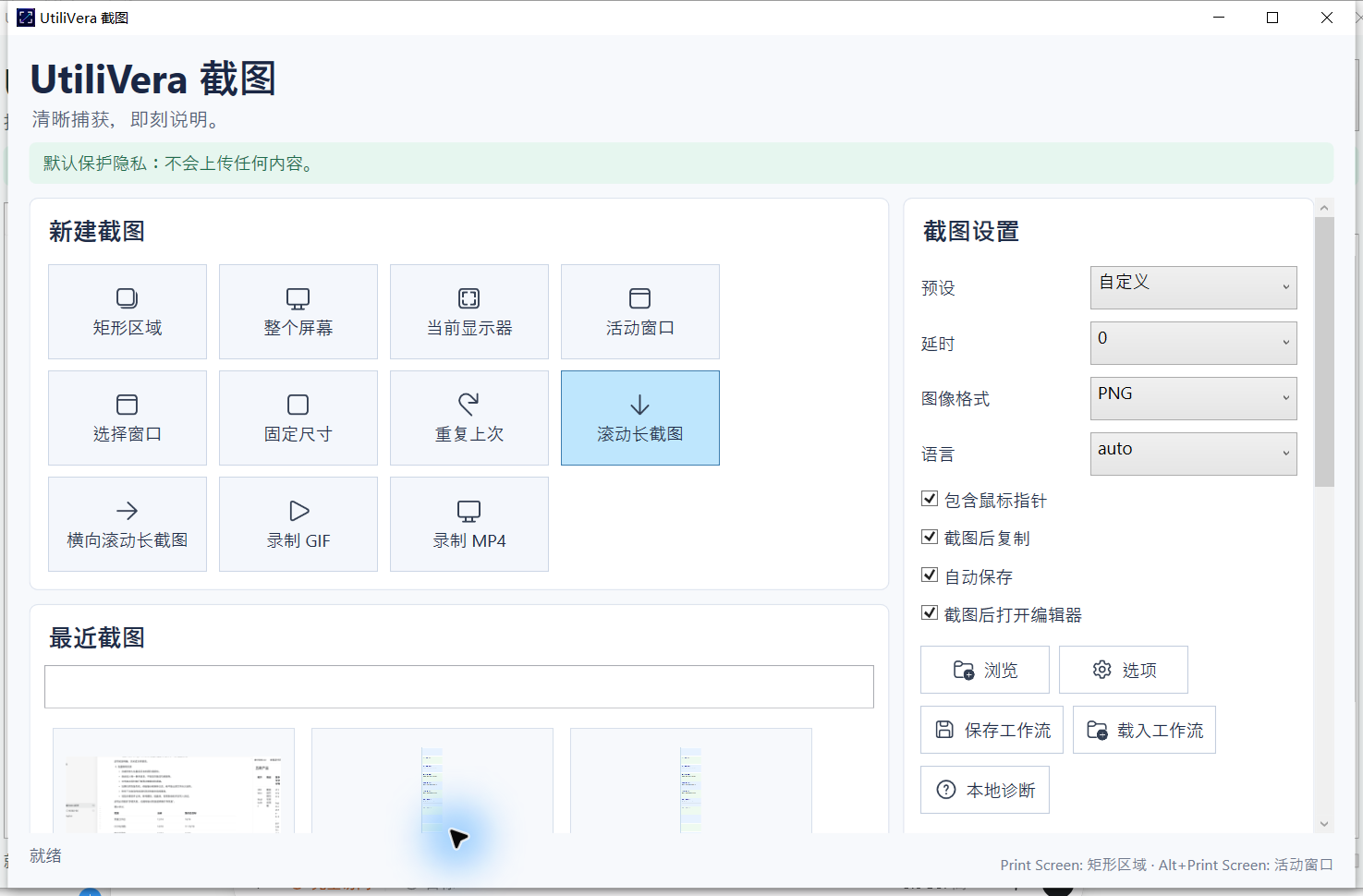 Open the full-size interface image
Inspect all 78 named tests · Verify this guide workflow · Verify artifact hashes
Failure modes and limits
GIF has no sound, uses a limited palette, and grows quickly with large regions, long durations, or high frame rates. Protected and hardware-overlay content may not be capturable.
Stop when the capture omits required context, a scroll seam repeats or skips content, a recording stream cannot be decoded, OCR changes a critical value, or a redaction leaves private information visible.
Recovery and verification
Reduce the region, shorten the action, lower the frame rate, or switch to H.264 MP4. Re-record if the opening context, final state, timing, or any privacy check fails.
Record the application version, capture target, pointer and delay settings, scroll axis or audio choice, output format, and final artifact hash when the result must be reproducible.
Bound to one frozen build
These statements use the 293,888-byte executable with SHA-256 3832C20012F30B07C2D61ACECCAFC9949B4738F065C53D23D2C781D6BCCF5DB7. The product audit passed. The current public installer is unsigned.
Frequently asked questions
What frame rate should a screen GIF use?+
Start around five to ten frames per second for menus and short interface actions, then increase only when the motion actually requires it.
Can a GIF include system audio?+
No. Use the MP4 recording workflow when sound, narration, or synchronized system audio matters.
Why is my GIF so large?+
Large dimensions, long duration, frequent changes, and high frame rates all increase size. Record a smaller region for less time.
Official and primary sources
Links were checked September 4, 2026. External claims are limited to the cited Microsoft source.
Continue the real workflow
Choose the next UtiliVera tool by task
UtiliVera Capture
Capture deliberately. Verify the output. Share only what belongs.
The unsigned public installer is available now. Review the Windows warning and verify SHA-256 on the release page before running it.
View unsigned download details