Evidence-backed Windows capture guide
How to Take a Scrolling Screenshot on Windows 10/11
Open the scrollable content, choose vertical or horizontal scrolling capture, select only the scrolling viewport, and let the tool match overlapping frames. Stop if the page animates, changes layout, or repeats a sticky region; then verify the top, middle, bottom, dimensions, and seams before sharing.
Watch the 42-second Capture tourKeyword focus: scrolling screenshot WindowsChoose the right workflow
Use the simplest capture method that fits
A browser can capture a normal webpage directly. A desktop stitcher is useful when the target is an application, document pane, or horizontal surface.
On a small screen, swipe the table or focus it and use the arrow keys.
| Option | Best when | Know before using |
|---|---|---|
| Microsoft Edge | Capture a normal full webpage with Ctrl+Shift+S, then choose Capture full page. | This is the simplest built-in route for a webpage, not an arbitrary scrollable region inside every Windows app. |
| Windows Snipping Tool | Capture a visible rectangle, window, full screen, or short video without installing another app. | Microsoft's normal snip modes describe the visible selection; they do not replace a verified multi-frame scroll stitch. |
| UtiliVera Capture | Capture a scrollable app/document region or horizontal board with overlap, sticky-region, cancellation, and seam checks. | Dynamic ads, infinite feeds, video, parallax, and independently scrolling panes can still defeat reliable stitching. |
Capture a full webpage or scrollable Windows region as one image. Handle sticky areas, horizontal boards and seams, then verify the result before sharing.
Prepare stable content
Finish loading images, close pop-ups, pause animations, and keep browser zoom fixed. Expanding accordions or lazy-loaded blocks during capture can change geometry between frames. A sticky header is acceptable when the stitcher can identify and suppress repeated content, but moving ads and video create ambiguous overlaps.
Select only the scroll viewport
Exclude browser chrome and side panels that do not move with the page. For a vertical page, the selection should contain the column that scrolls; for a wide board or timeline, use the horizontal mode and include stable features that appear in consecutive frames.
Use bounded automatic stitching
The frozen build supports vertical and horizontal axes, automatic overlap analysis, sticky-header handling, cancellation, and a 100-frame safety limit. The controlled horizontal workflow generated a 6,289 × 540 PNG from independently captured frames and verified that the output was wider than a single frame.
- Load and stabilize the content
- Select Vertical scroll or Horizontal scroll
- Draw the viewport
- Start capture
- Do not interact until completion
- Inspect dimensions and every seam
Verify, do not assume
Compare the first and last visible items with the source. Inspect high-contrast edges where duplicate or missing rows are easy to see. Confirm that no repeated sticky header sits in the middle and that the capture did not stop before the true end.
First-party workflow evidence
Controlled input → settings → expected → actual
- Controlled input
- A controlled horizontally scrollable Windows surface wider than one viewport.
- Mode and settings
- Frozen 0.6 horizontal scrolling workflow, automatic overlap matching, bounded frames, PNG output.
- Expected result
- One valid image substantially wider than the viewport, with ordered content and no missing output on success.
- Actual 0.6.0 result
- The workflow produced a 6,289 × 540 PNG; dimensions, bytes, and SHA-256 were recorded in the public workflow evidence.
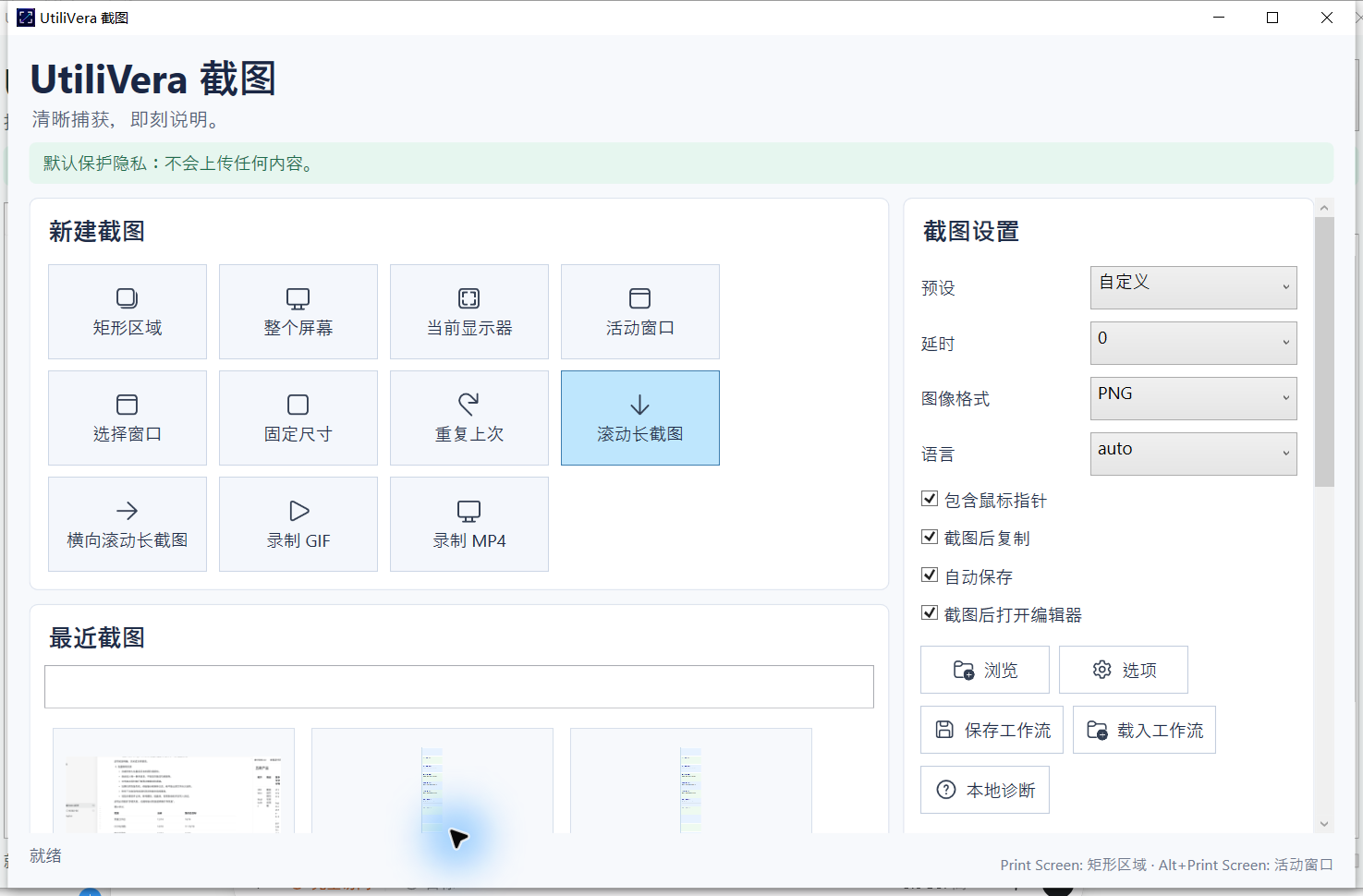 Open the full-size interface image
 Open the full 6,289 × 540 scrolling proof
Inspect all 78 named tests · Verify this guide workflow · Verify artifact hashes
Failure modes and limits
Infinite feeds, changing ads, video, parallax, independently scrolling panes, and content that redraws during movement may not stitch reliably.
Stop when the capture omits required context, a scroll seam repeats or skips content, a recording stream cannot be decoded, OCR changes a critical value, or a redaction leaves private information visible.
Recovery and verification
Cancel when content changes, return to the starting position, stabilize the page, and retry with a smaller viewport. Keep individual evidence screenshots when one long composite would hide timing.
Record the application version, capture target, pointer and delay settings, scroll axis or audio choice, output format, and final artifact hash when the result must be reproducible.
Bound to one frozen build
These statements use the 293,888-byte executable with SHA-256 3832C20012F30B07C2D61ACECCAFC9949B4738F065C53D23D2C781D6BCCF5DB7. The product audit passed. The current public installer is unsigned.
Frequently asked questions
Can Windows Snipping Tool capture a whole scrolling page?+
Its normal screenshot workflow captures the selected visible area. A dedicated scrolling stitch workflow is needed for a long composite.
Can the tool stitch horizontally?+
Yes. The frozen build has separate vertical and horizontal modes.
Why is a section duplicated?+
A sticky or animated region may have changed between frames. Stabilize the content or reduce the selected viewport and retry.
Official and primary sources
Links were checked September 4, 2026. External claims are limited to the cited Microsoft source.
Continue the real workflow
Choose the next UtiliVera tool by task
UtiliVera Capture
Capture deliberately. Verify the output. Share only what belongs.
The unsigned public installer is available now. Review the Windows warning and verify SHA-256 on the release page before running it.
View unsigned download details