Evidence-backed Windows scanning guide
How to scan documents to PDF on Windows
Scan from a WIA flatbed, feeder, or duplex source—or import existing pages—then create and verify one private PDF without uploading the document.
Select a WIA source or import existing pages, scan one representative page before the full batch, order and rotate the page thumbnails, choose searchable PDF only when OCR is useful, save to a new path, and open the finished PDF to verify page count, orientation, search, and legibility.
Keyword focus: scan documents to PDF WindowsChoose the acquisition path before touching the paper
Use a flatbed for fragile originals, photographs, receipts, and documents that cannot pass through rollers. Use an automatic feeder for stable same-size pages, and duplex only after confirming the front/back orientation on a two-page rehearsal. Existing PNG, JPEG, TIFF, and PDF pages can enter the same workspace, so a partly scanned job does not need to be restarted. Keep the paper order visible and remove staples before a feeder run.
Run one representative page first
Resolution, color mode, source size, and feeder behavior should be verified on the most difficult page—not the clean cover. Three hundred DPI is a practical starting point for ordinary text; small type or degraded originals may benefit from higher resolution, while oversampling every page makes the PDF larger and slows cleanup and OCR. Inspect thin strokes, signatures, stamps, pale pencil, and the page edges before committing the batch.
Build the document in a recoverable workspace
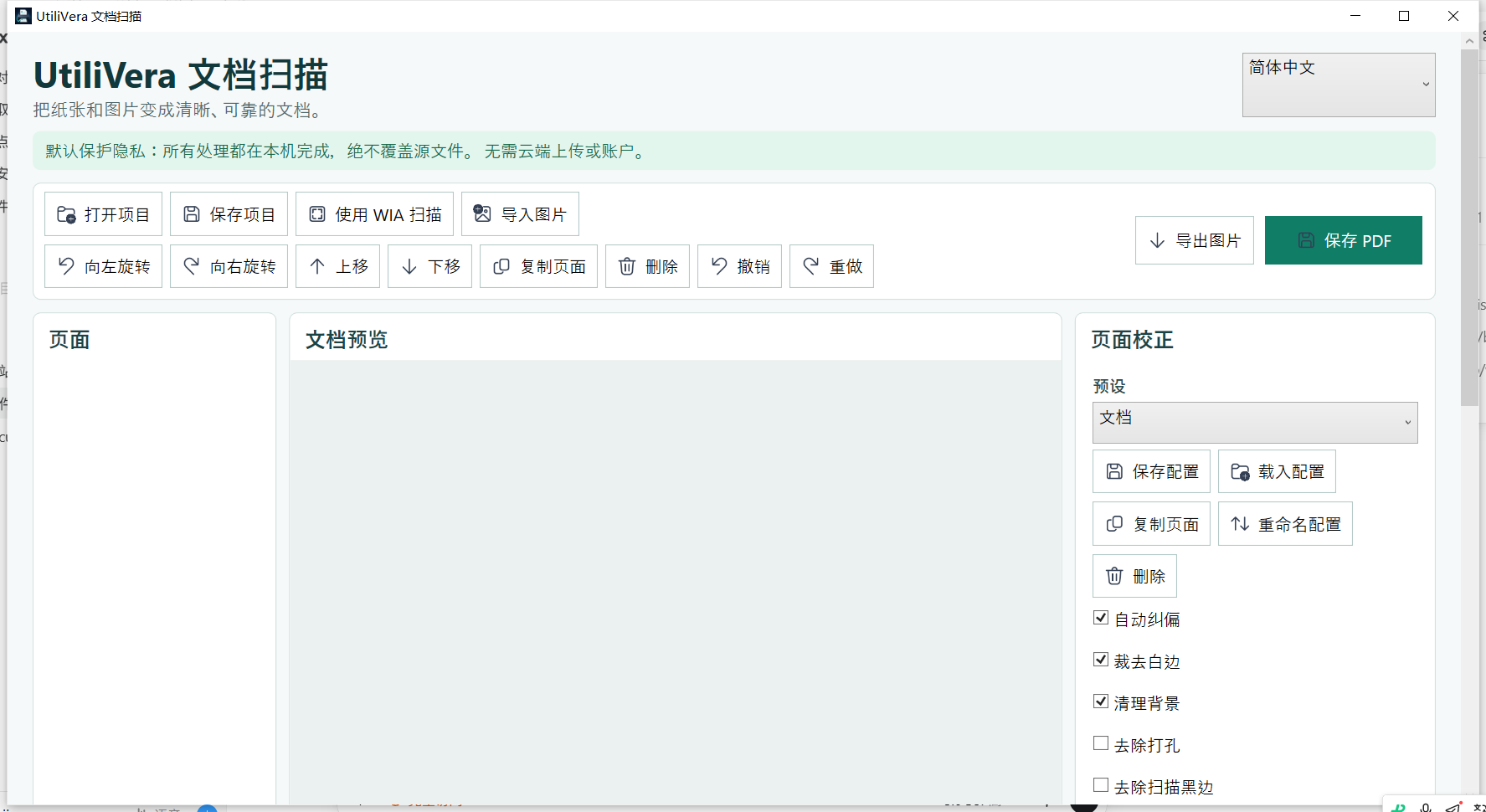
UtiliVera Scan retains the acquired pages as workspace items. Reorder, rotate, duplicate, remove, or interleave a multi-selection without modifying an imported source. Sixty persistent undo steps and a saved .uvscan project make correction safer than writing over the only copy. Use clear page thumbnails to catch an upside-down back side, repeated sheet, or missing page before export.
- Select the WIA device and source, or choose Import
- Scan one difficult page and inspect it at 100%
- Acquire the remaining pages
- Reorder, rotate, and remove accidental duplicates
- Choose image-only or searchable PDF deliberately
- Save to a new path and verify the finished file
Verify the file as a document, not just an icon
Open the PDF in an independent viewer. Count the pages, visit the first and last page, zoom into the weakest text, and search for a known phrase when OCR was enabled. Confirm that the output opens after the scanner is disconnected and that no temporary or partial file occupies the destination. For records work, retain the application version, scan settings, output byte size, and SHA-256 beside the source inventory.
First-party workflow evidence
Controlled input → settings → expected → actual
- Controlled input
- Two controlled 1275 × 1650 PNG document pages with distinct page labels and text.
- Mode and settings
- Frozen 0.5.2 CLI import, ordered two-page PDF output, local processing, atomic destination write.
- Expected result
- A valid two-page PDF in source order, non-empty, readable after the command exits, with neither input changed.
- Actual 0.5.2 result
- The controlled workflow created the public two-page PDF artifact; page count, byte identity, PDF header, output hash, and unchanged input hashes were recorded.
Inspect all 51 named tests · Verify this guide workflow · Verify artifact hashes
Failure modes and limits
WIA capabilities depend on the installed scanner driver. Paper jams, double-feeds, protected PDFs, damaged images, and unsupported device properties require operator intervention.
Stop when the source is incomplete, page order is uncertain, cleanup removes meaningful marks, OCR changes a critical value, the requested output contract cannot be verified, or an external validator rejects an archival file. A successful command is not a substitute for inspecting the document.
Recovery and verification
Keep the .uvscan project and originals, cancel a failing acquisition, re-scan only the affected sheets, then re-export to a new atomic destination and repeat page-count verification.
For reproducible work, retain the application and profile version, source inventory, acquisition settings, language, cleanup operations, output type, final byte size, SHA-256, verification steps, and any independent validation report. Keep the official record separate from temporary previews.
Bound to one frozen build
These statements use the 347,136-byte executable with SHA-256 667A5188257ACEA54A56F66EAB46A96B47E4A3BABC0792758309E854B2816099. The application audit passed. The current public installer is unsigned.
Frequently asked questions
Can I make a PDF without a scanner?+
Yes. Import existing image, TIFF, or supported PDF pages into the same workspace and export them as one PDF.
What DPI should I use for text?+
Start at 300 DPI for ordinary office text, then test a difficult page. Use more only when small or degraded details justify the extra size.
Does the document go to the cloud?+
No. The frozen workflow performs acquisition, cleanup, OCR, and PDF creation locally.
Official and primary sources
Links were checked August 20, 2026. Product-specific results come from the frozen local evidence; standards and platform context use the sources below.
Continue the real workflow
Choose the next UtiliVera tool by task
UtiliVera Scan
Preserve the source. Verify every page. Deliver the intended contract.
The unsigned public installer is available now. Review the Windows warning and verify SHA-256 on the release page before running it.
View unsigned download details