Evidence-backed Windows scanning guide
How to scan paper to a searchable PDF on Windows
Acquire physical paper through a Windows WIA flatbed or feeder, add local OCR, and verify the resulting searchable PDF before filing it.
Load the paper in a WIA flatbed or feeder, preview the physical page, choose 300 DPI and the correct OCR language, acquire all sides in order, then create a searchable PDF and verify names, dates, amounts, and page order against the captured images. Use UtiliVera OCR instead when the source is already an image-only PDF and no scanner acquisition is needed.
Keyword focus: scan paper to searchable PDF WindowsStart with the physical paper and the right WIA source
Connect the scanner, install its Windows WIA driver, and decide whether the job belongs on the flatbed, automatic document feeder, or duplex feeder. Remove staples, square the stack, confirm front/back orientation, and preview one representative sheet before the batch. This guide covers physical acquisition; if the document is already a scanned PDF, use the separate OCR post-processing workflow instead.
Match recognition language to the page
Choose the language that dominates the document. UtiliVera bundles ten local OCR models: English, Simplified and Traditional Chinese, German, Spanish, French, Japanese, Korean, Portuguese, and Russian. Mixed scripts, handwriting, stylized fonts, vertical text, mathematical notation, stamps, and low-contrast carbon copies need closer review. Do not select every language reflexively; a focused model can reduce ambiguous substitutions.
Prepare the image without erasing evidence
Deskew a tilted page, crop irrelevant borders, and reduce background noise only after comparing the preview with the source. Aggressive cleanup can remove punctuation, decimal points, thin table rules, faint signatures, or diacritics. Work on the workspace copy, use undo, and review the preview at 100% before applying one preset to a whole batch.
- Load and preserve the physical originals in known order
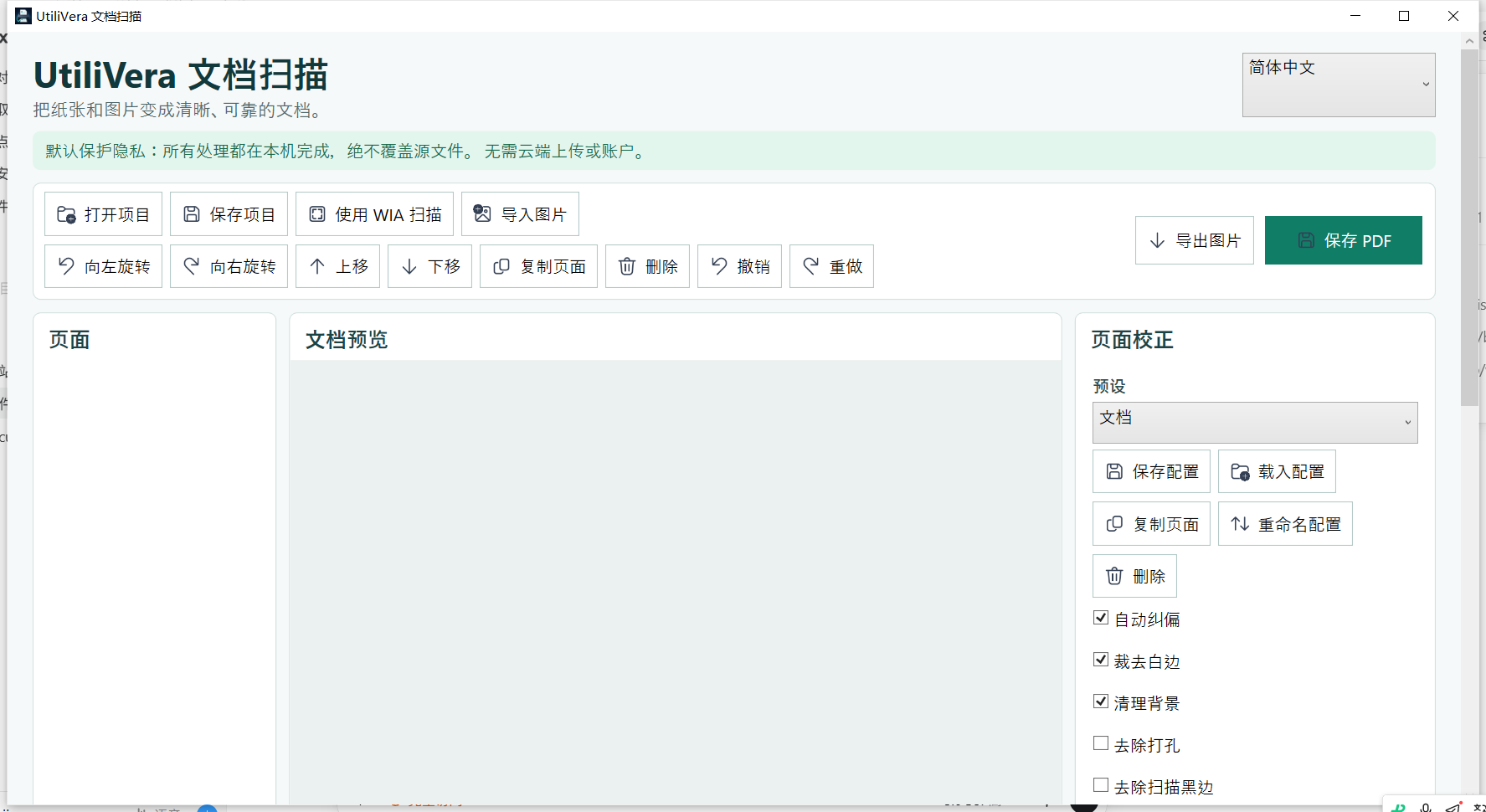
- Select the WIA flatbed, feeder, or duplex source
- Preview one page at 300 DPI and confirm orientation
- Select the primary OCR language
- Acquire every page and review the captured queue
- Create a searchable PDF to a new path
- Search names, dates, amounts, and a phrase from the final page
Verify text and pixels separately
A searchable PDF has two responsibilities: the visible scan should remain faithful, and the hidden text should be useful. Search a unique phrase, copy a paragraph into a plain-text editor, and compare numbers character by character. Look especially for O/0, I/1/l, decimal separators, hyphens, and accented names. When accuracy is legally or financially important, record corrections externally or use a human-reviewed transcription rather than treating raw OCR as authoritative.
First-party workflow evidence
Controlled input → settings → expected → actual
- Controlled input
- A controlled paper-like 300-DPI page fixture containing a known English phrase and numeric fields; the public fixture tests the post-acquisition path because automated evidence cannot claim a specific user's WIA hardware.
- Mode and settings
- Frozen 0.5.2 local English OCR and searchable PDF output, executed offline after the controlled page entered the workspace.
- Expected result
- The frozen command exits successfully, writes a PDF, exposes a font resource for the text layer, and completes without a network service.
- Actual 0.5.2 result
- The public record reports exitCode 0, fontResource true, and offline true, and publishes byte counts and SHA-256 identities for the controlled input fixture and resulting PDF. It does not claim to automate or certify third-party scanner hardware.
Inspect all 51 named tests · Verify this guide workflow · Verify artifact hashes
Failure modes and limits
Recognition is probabilistic. Handwriting, unusual layouts, damaged pages, mixed languages, tables, and faint characters may be wrong even when search succeeds.
Stop when the source is incomplete, page order is uncertain, cleanup removes meaningful marks, OCR changes a critical value, the requested output contract cannot be verified, or an external validator rejects an archival file. A successful command is not a substitute for inspecting the document.
Recovery and verification
Return to the preserved source, adjust language or cleanup conservatively, regenerate to a new file, and repeat both visual and text verification. Never overwrite the only image-only copy.
For reproducible work, retain the application and profile version, source inventory, acquisition settings, language, cleanup operations, output type, final byte size, SHA-256, verification steps, and any independent validation report. Keep the official record separate from temporary previews.
Bound to one frozen build
These statements use the 347,136-byte executable with SHA-256 667A5188257ACEA54A56F66EAB46A96B47E4A3BABC0792758309E854B2816099. The application audit passed. The current public installer is unsigned.
Frequently asked questions
Will OCR change how the page looks?+
The searchable workflow retains the visible scan and adds a text layer, but you should still compare the finished page with the source.
Is OCR accurate enough for contracts?+
It helps discovery, but critical clauses, names, dates, and numbers require visual human verification.
Can it recognize Chinese and Japanese locally?+
Yes. The frozen package includes Simplified Chinese, Traditional Chinese, Japanese, and seven other OCR models.
Official and primary sources
Links were checked August 20, 2026. Product-specific results come from the frozen local evidence; standards and platform context use the sources below.
Continue the real workflow
Choose the next UtiliVera tool by task
UtiliVera Scan
Preserve the source. Verify every page. Deliver the intended contract.
The unsigned public installer is available now. Review the Windows warning and verify SHA-256 on the release page before running it.
View unsigned download details