Evidence-backed Windows scanning guide
How to scan multiple pages into one PDF on Windows
Scan a multipage PDF on Windows with an ADF or flatbed, keep pages in order, add duplex backs or inserts, and verify the finished PDF offline.
Use an ADF for stable same-size sheets, a flatbed for fragile pages and inserts, or import pages that already exist. Windows Fax and Scan can acquire simple batches, but use a document workspace when you must mix sources, interleave duplex backs, repair order, save progress, and verify one final PDF.
Keyword focus: scan multiple pages into one PDF WindowsChoose ADF, flatbed, or an existing-page workflow
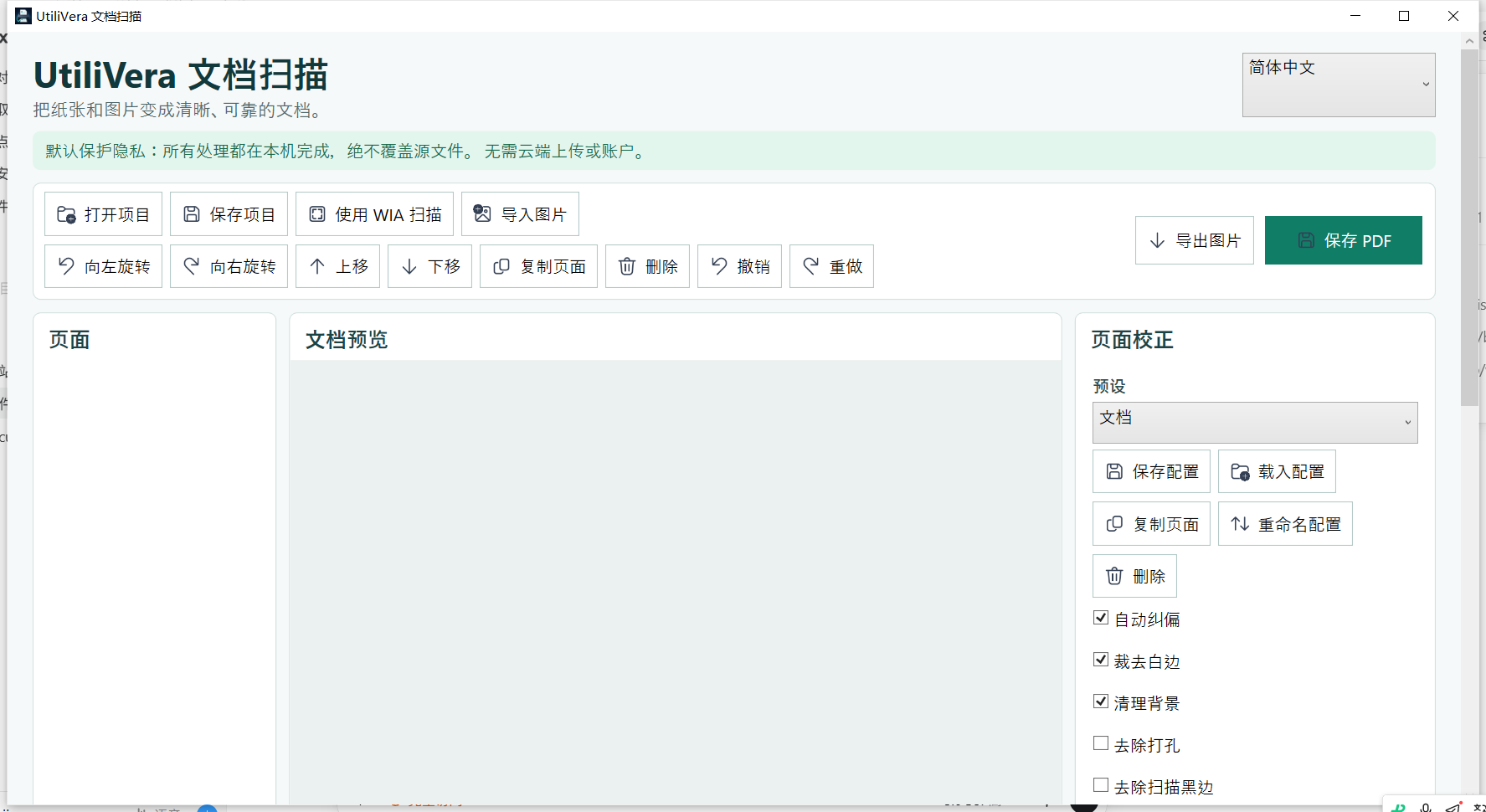
Use an automatic document feeder for stable same-size sheets, and rehearse duplex orientation with two pages before the full run. Use a flatbed for photographs, receipts, fragile originals, foldouts, and pages that cannot pass through rollers. Windows Fax and Scan is adequate for straightforward acquisition, but it is not the safest assembly path when a job mixes scans, imported pages, reversed backs, or interrupted batches. In those cases, keep every page in a saved UtiliVera workspace and build one verified PDF at the end.
Define the order and acquire checkable batches
Write the expected page count and note inserts, foldouts, photographs, and intentional blank backs. Large feeder runs save clicks but make double-feeds and jams harder to locate. Use labeled batches that match sections or physical clips, verify the first and last sheet of each batch, scan fragile inserts on the flatbed, and import digital pages into the same workspace before the one final export.
Use structural operations instead of repetitive dragging
Reverse a selection when a stack arrives backward. Interleave two selections when fronts and backs were captured separately. Rotate a multi-selection together, duplicate only deliberate divider pages, and use keyboard movement for exact placement. Persistent undo protects against a bad bulk action, while a saved project preserves the assembled state before output.
- Record expected pages and special inserts
- Scan a small front/back rehearsal
- Acquire labeled feeder and flatbed batches
- Reverse, interleave, rotate, and insert as needed
- Compare workspace count with the expected count
- Export once, then inspect boundaries and final page
Audit omissions and duplicates systematically
Do not review only page one. Check the transition between every acquisition batch, any page after a jam, and the insertion points for flatbed material. Repeated headers can hide duplicated pages, so compare page-specific numbers, dates, or footer marks. The final PDF page count should equal the expected count after intentional blank removal—not merely the number that happened to be scanned.
First-party workflow evidence
Controlled input → settings → expected → actual
- Controlled input
- Two labeled controlled pages imported in a known order, representing a mixed-source batch.
- Mode and settings
- Frozen 0.5.2 two-page assembly and atomic PDF output, with distinct source and destination paths.
- Expected result
- One PDF with exactly two pages in the requested order and no mutation of either input.
- Actual 0.5.2 result
- The controlled artifact passed page-count, order-marker, header, byte, hash, and unchanged-input checks recorded in the workflow evidence.
Inspect all 51 named tests · Verify this guide workflow · Verify artifact hashes
Failure modes and limits
A software page count cannot detect a physical sheet that never entered the scanner. Feeder double-feed detection and duplex behavior vary by device and driver.
Stop when the source is incomplete, page order is uncertain, cleanup removes meaningful marks, OCR changes a critical value, the requested output contract cannot be verified, or an external validator rejects an archival file. A successful command is not a substitute for inspecting the document.
Recovery and verification
Retain the saved project, re-scan only missing or damaged sheets, insert them at the verified position, and export a new revision rather than patching the only PDF in place.
For reproducible work, retain the application and profile version, source inventory, acquisition settings, language, cleanup operations, output type, final byte size, SHA-256, verification steps, and any independent validation report. Keep the official record separate from temporary previews.
Bound to one frozen build
These statements use the 347,136-byte executable with SHA-256 667A5188257ACEA54A56F66EAB46A96B47E4A3BABC0792758309E854B2816099. The application audit passed. The current public installer is unsigned.
Frequently asked questions
Can I mix scanned and existing pages?+
Yes. WIA pages, images, multi-page TIFF, and supported PDF pages can share one workspace before export.
What if duplex backs are reversed?+
Select the back-page group, reverse it, then interleave it with the front group and inspect the sequence.
How do I avoid losing work after a jam?+
Use smaller batches and save a .uvscan project before and after structural changes.
Official and primary sources
Links were checked August 20, 2026. Product-specific results come from the frozen local evidence; standards and platform context use the sources below.
Continue the real workflow
Choose the next UtiliVera tool by task
UtiliVera Scan
Preserve the source. Verify every page. Deliver the intended contract.
The unsigned public installer is available now. Review the Windows warning and verify SHA-256 on the release page before running it.
View unsigned download details