Evidence-backed Windows scanning guide
How to clean up a document scan on Windows
Deskew pages, crop white margins, normalize a paper background, and remove punch holes or dark borders without damaging thin text or source evidence.
Preserve the original, inspect a difficult page at 100%, preview one correction at a time, prefer small deskew and conservative border/background cleanup, compare punctuation and faint marks before applying a preset to the batch, and keep the reversible project until the final PDF is verified.
Keyword focus: clean up document scan WindowsIdentify the defect before selecting a filter
Tilt, oversized margins, grey paper, dark scanner edges, punch holes, show-through, and halftone patterns are different problems. A generic high-contrast filter can make a page look crisp while destroying pencil, fine rules, decimal points, or photograph detail. List what is wrong and what must remain before changing the page.
Work from geometry toward tone
Correct rotation and modest deskew first, then crop or remove dark borders, and only afterward adjust background and noise. Geometry changes the pixels sampled by later operations. Run a preview on the page with the faintest text and the strongest defect; a preset that is safe there is a better candidate for a consistent batch than one tuned to the cleanest page.
Treat automated cleanup as a proposal
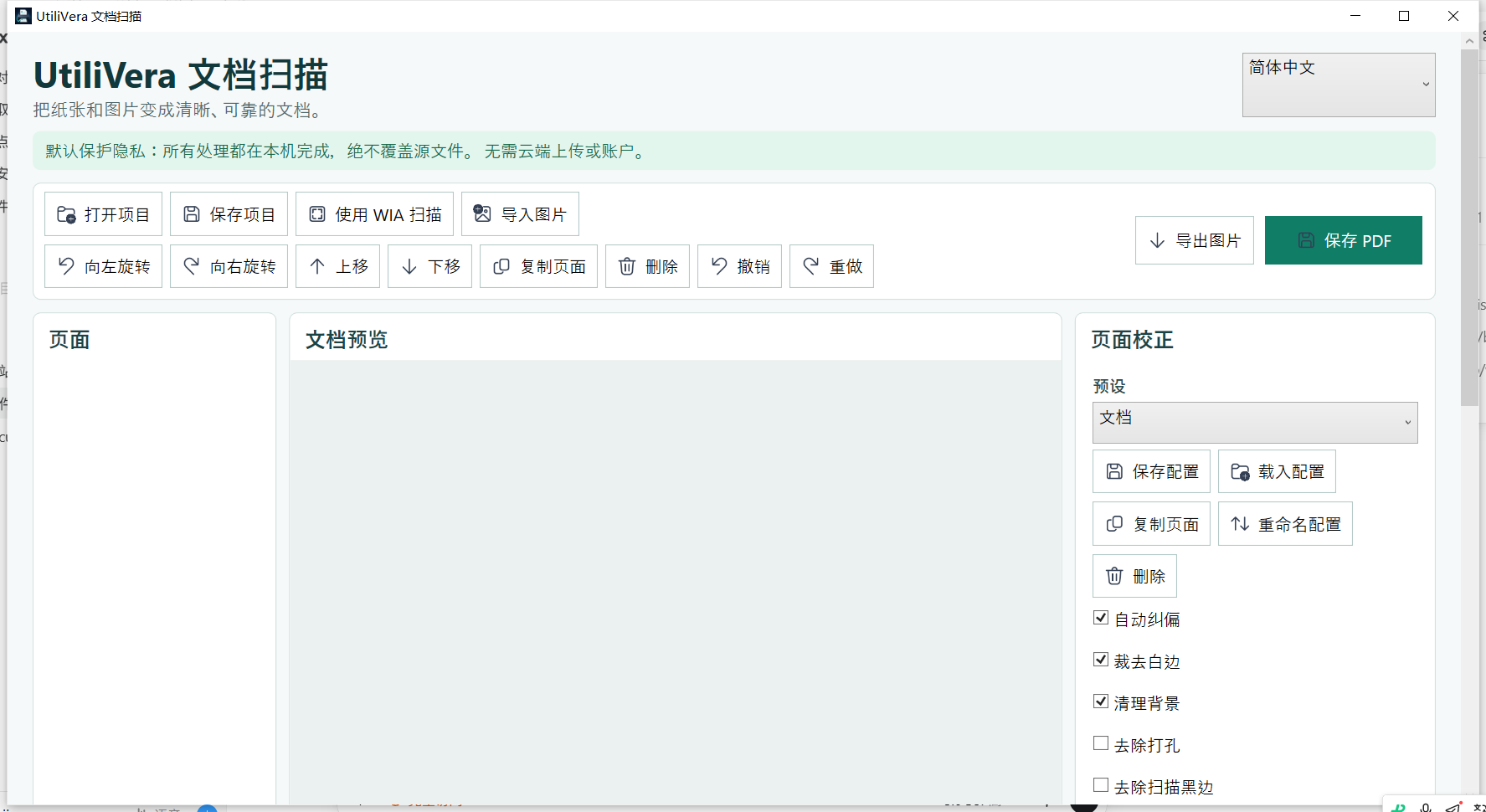
UtiliVera offers cancellable previews for deskew, white-margin crop, paper-background cleanup, punch-hole removal, dark-border cleanup, and halftone reduction. The workspace and 60-step undo history make experimentation recoverable, but the operator still decides whether the result preserves meaning. Apply to a selection only after comparing source and preview at normal reading size and at 100%.
- Duplicate or preserve the original scan
- Rotate and preview deskew
- Correct borders and margins
- Preview background or noise cleanup
- Inspect punctuation, signatures, and table rules
- Apply to the batch only after the difficult page passes
Compare information, not just aesthetics
A whiter page is not automatically a better record. Compare names, dates, decimal points, handwritten notes, embossed seals, stamps, and low-contrast annotations. If OCR follows cleanup, verify whether recognition improves without losing visible evidence. Keep before/after hashes and export a new deliverable when the document is part of an audit or retention workflow.
First-party workflow evidence
Controlled input → settings → expected → actual
- Controlled input
- A controlled skewed page with a tinted background, border noise, text, and known dimensions.
- Mode and settings
- Frozen 0.5.2 local deskew and document-cleanup workflow with output written separately.
- Expected result
- A valid cleaned image with changed output identity, preserved readable markers, plausible dimensions, and unchanged source bytes.
- Actual 0.5.2 result
- The public workflow artifact recorded source and output dimensions, byte counts, SHA-256 identities, format validation, and explicit unchanged-source verification.
Inspect all 51 named tests · Verify this guide workflow · Verify artifact hashes
Failure modes and limits
Severe perspective distortion, torn text, handwriting over stains, embossed marks, photographs, and already thresholded images may need manual work or no cleanup at all.
Stop when the source is incomplete, page order is uncertain, cleanup removes meaningful marks, OCR changes a critical value, the requested output contract cannot be verified, or an external validator rejects an archival file. A successful command is not a substitute for inspecting the document.
Recovery and verification
Undo the last operation or reopen the saved project, reduce the correction, and export a new version. Preserve the untouched source whenever appearance carries evidentiary value.
For reproducible work, retain the application and profile version, source inventory, acquisition settings, language, cleanup operations, output type, final byte size, SHA-256, verification steps, and any independent validation report. Keep the official record separate from temporary previews.
Bound to one frozen build
These statements use the 347,136-byte executable with SHA-256 667A5188257ACEA54A56F66EAB46A96B47E4A3BABC0792758309E854B2816099. The application audit passed. The current public installer is unsigned.
Frequently asked questions
Can cleanup improve OCR?+
Often, especially with mild skew and background noise, but aggressive cleanup can also erase characters and reduce accuracy.
Should I remove blank pages automatically?+
Review them first. A blank back can be structurally meaningful, and faint content can be mistaken for blank.
Does cleanup overwrite the original?+
The workflow operates on workspace items and exports separately; keep the original and project until verification is complete.
Official and primary sources
Links were checked August 20, 2026. Product-specific results come from the frozen local evidence; standards and platform context use the sources below.
Continue the real workflow
Choose the next UtiliVera tool by task
UtiliVera Scan
Preserve the source. Verify every page. Deliver the intended contract.
The unsigned public installer is available now. Review the Windows warning and verify SHA-256 on the release page before running it.
View unsigned download details