Evidence-backed Windows OCR guide
How to extract text from an image on Windows
Extract text from PNG, JPEG, BMP, TIFF, GIF, or a photographed document locally, then verify uncertain words before copying or export.
Add or paste the image, choose an installed Windows OCR language, compare the original page with word boxes, review low-confidence words, then copy the corrected page or export it as TXT, DOCX, JSON, searchable PDF, or another needed format.
Keyword focus: extract text from image WindowsUse the clearest source you have
A sharp original image usually produces a more trustworthy result than a screenshot of a compressed preview. Keep the original untouched. If a phone photo has perspective distortion, use perspective correction before recognition and compare the processed preview with the source.
Select the document language
UtiliVera lists OCR resources installed in Windows. Select the language that matches the page rather than assuming the interface language is also the recognition language. If the needed resource is absent, install the Windows language feature and reopen the app.
Recognize and review in context
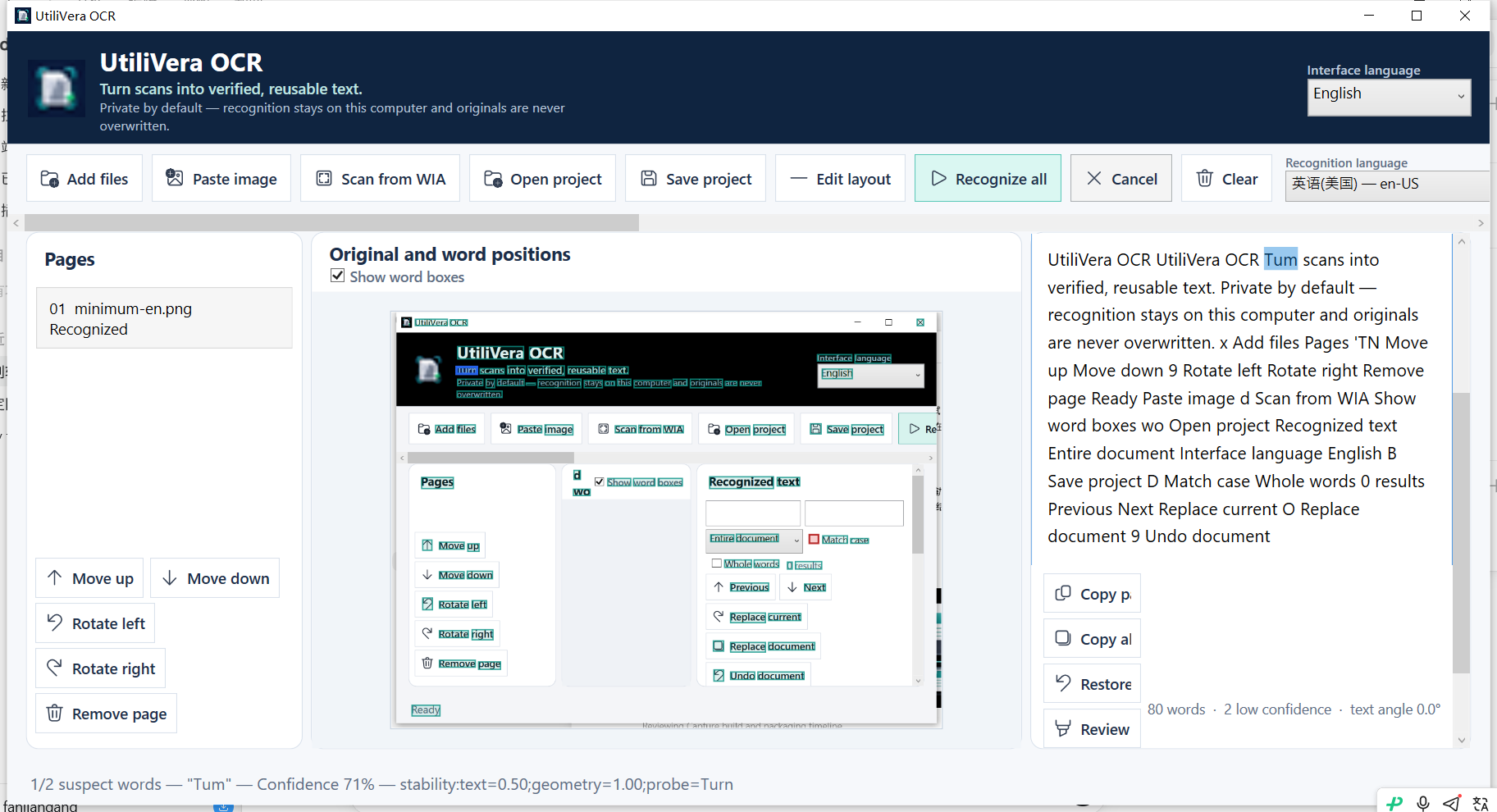
Recognition creates text plus word coordinates. Selecting a suspect word keeps its page location visible, so a low-confidence character can be checked against the source instead of guessed from a detached text block.
- Add files or paste an image
- Choose recognition language
- Apply cleanup only when the preview improves the source
- Select Recognize all
- Review suspect words
- Copy or export the corrected result
Choose the smallest useful output
Use TXT for plain text, DOCX for editable page-oriented work, JSON or ALTO for coordinates, and searchable PDF when the visible page must stay intact. Do not add structure that the source does not contain.
First-party workflow evidence
Controlled input → settings → expected → actual
- Controlled input
- Audited English image containing 80 recognized words and a deliberately ambiguous Turn/Tum token.
- Mode and settings
- Windows en-US OCR, word boxes enabled, low-confidence review sequence.
- Expected result
- The first suspect remains selected in both source and editor, with percentage, reason, and 1/2 progress.
- Actual 0.7.0 result
- Frozen 0.7 showed “Tum”, confidence 71%, stability evidence, and 1/2 suspect progress; the product audit recorded PASS.
Inspect all 140 named test results · Verify this guide workflow · Verify artifact hashes
Failure modes and limits
OCR can misread blur, glare, handwriting, decorative fonts, or a language whose resource is not installed. Confidence is evidence for review, not a guarantee.
Always inspect names, codes, dates, totals, and negative signs. A confidence score helps prioritize review; it does not make an unchecked result authoritative. Stop when the processed preview removes content or when expected and actual structure differ.
Recovery and verification
Save a .uvocr project before major corrections; it embeds the page, original and corrected text, geometry, confidence evidence, and settings.
Record the input filename, page range, recognition language, processing settings, application version, output format, and a few known search terms or cell values. That record makes the result reproducible and explains what was checked.
Bound to one frozen build
These statements use the 346,624-byte executable with SHA-256 31E46DEC406F6FFF4A8CF68EB66E347234C2DB87EFAA32FAAC7A3EBF504C9784. The product audit passed; the current public installer is unsigned.
Frequently asked questions
Can Windows copy text from an image without cloud upload?+
Yes. Windows Snipping Tool offers local Text actions for a quick screenshot. UtiliVera adds multipage work, guided review, projects, structured exports, and searchable documents.
Does OCR change my image?+
No. The source file is not overwritten. Processing and export use separate outputs.
What if the text language is missing?+
Install the appropriate Windows language feature, restart the app, and select it from the recognition-language list.
Official and primary sources
Links were checked August 15, 2026. External-product statements are limited to the cited vendor or standards source.
Continue the real workflow
Choose the next UtiliVera tool by task
UtiliVera OCR
Recognize locally. Verify visibly. Export deliberately.
The unsigned public installer is available now. Review the Windows warning and verify SHA-256 before running it.
View unsigned download details