Evidence-backed Windows OCR guide
How to copy text from a screenshot on Windows
Copy text from an existing screenshot or a new screen capture locally, then review names, codes, amounts, and ambiguous characters before reuse.
For one quick capture, Windows Snipping Tool Text actions can copy text locally. For saved screenshots, batches, repeatable review, or structured output, paste or add the image in UtiliVera OCR, recognize it, verify suspect words, then copy the corrected page or document.
Keyword focus: copy text from screenshot WindowsUse the shortest trustworthy path
If the screenshot is already open and you only need a sentence, Snipping Tool Text actions may be enough. Use a review workspace when the text contains identifiers, totals, multiple pages, tables, or anything that must be explained later.
Paste without creating an extra source file
UtiliVera accepts a clipboard image directly. The page appears in the queue, can be rotated or cleaned, and stays linked to the recognized text and word boxes.
Check look-alike characters
Screenshots often contain small UI fonts where O/0, I/l/1, rn/m, or punctuation can be confused. Navigate suspect words and compare the highlighted box before copying.
- Capture or copy the screen region
- Paste image
- Choose language
- Recognize
- Review codes, names, dates, and amounts
- Copy page or all corrected text
Preserve evidence for important text
For a support case or compliance record, save the screenshot, corrected project, application version, and exported text together. That record is stronger than an unexplained clipboard result.
First-party workflow evidence
Controlled input → settings → expected → actual
- Controlled input
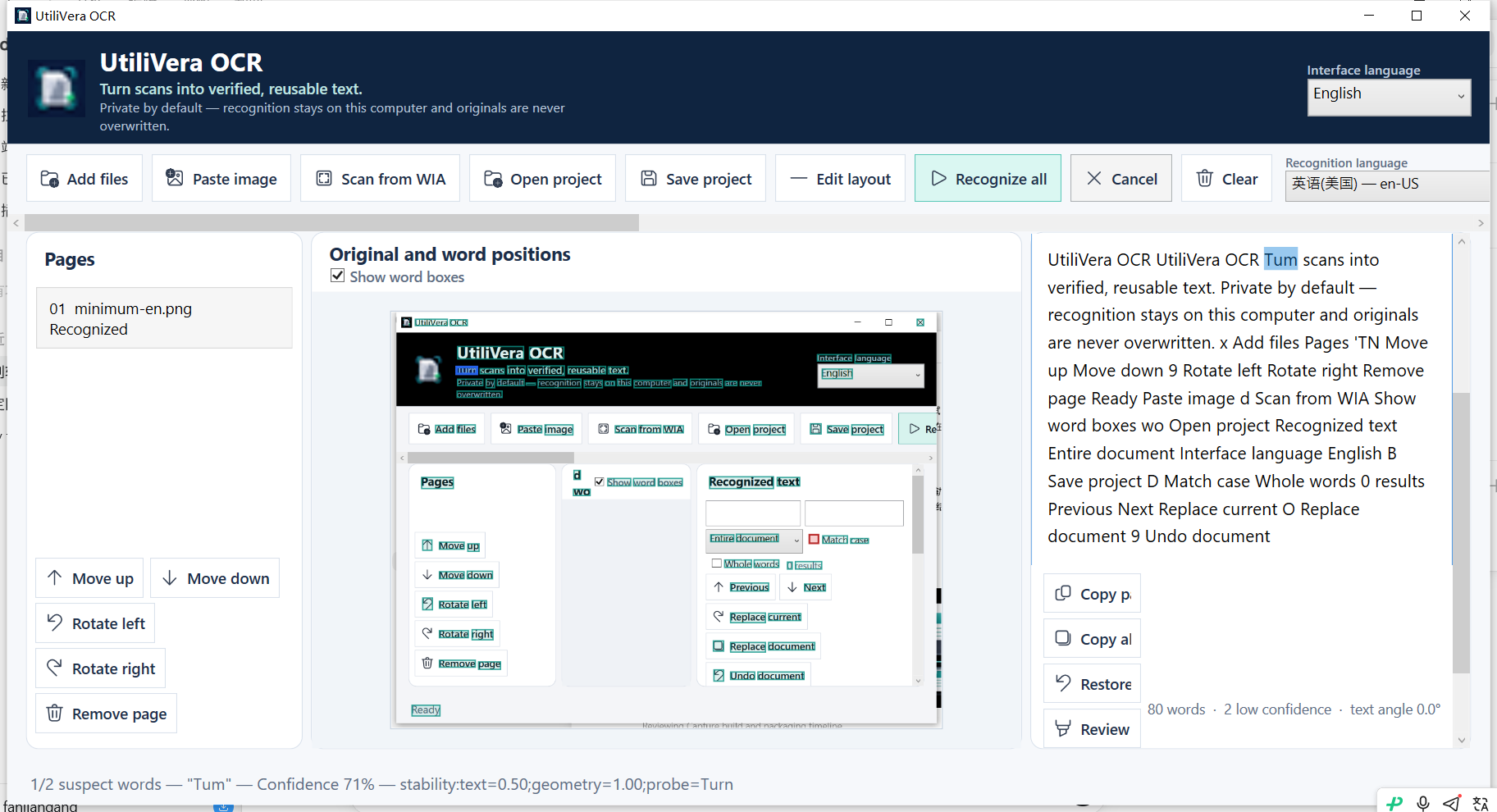
- Real audited screenshot of the OCR workspace, recognized as an image and containing small interface text.
- Mode and settings
- Clipboard/image workflow, word boxes, low-confidence navigation, document copy.
- Expected result
- Words remain linked to source coordinates and ambiguous text can be selected before copy.
- Actual 0.7.0 result
- Frozen 0.7 exposed named UI controls, source boxes, editable text, 1/2 suspect progress, and an explained 71% confidence selection.
Inspect all 140 named test results · Verify this guide workflow · Verify artifact hashes
Failure modes and limits
Tiny anti-aliased text, scaling blur, overlays, and icons may not recognize reliably. OCR output must not replace the screenshot when visual evidence matters.
Always inspect names, codes, dates, totals, and negative signs. A confidence score helps prioritize review; it does not make an unchecked result authoritative. Stop when the processed preview removes content or when expected and actual structure differ.
Recovery and verification
Save the original capture and a .uvocr project. Restore original OCR text within the editor if a broad edit or replacement was wrong.
Record the input filename, page range, recognition language, processing settings, application version, output format, and a few known search terms or cell values. That record makes the result reproducible and explains what was checked.
Bound to one frozen build
These statements use the 346,624-byte executable with SHA-256 31E46DEC406F6FFF4A8CF68EB66E347234C2DB87EFAA32FAAC7A3EBF504C9784. The product audit passed; the current public installer is unsigned.
Frequently asked questions
Does Windows already have screenshot OCR?+
Yes. Current Snipping Tool Text actions can recognize and copy text locally.
Why use a separate OCR workspace?+
It adds saved-image and multipage input, coordinates, confidence review, projects, batch work, and many export formats.
Can I undo a bad text edit?+
The app provides document undo and can restore original OCR text; saving a project preserves the review state.
Official and primary sources
Links were checked August 15, 2026. External-product statements are limited to the cited vendor or standards source.
Continue the real workflow
Choose the next UtiliVera tool by task
UtiliVera OCR
Recognize locally. Verify visibly. Export deliberately.
The unsigned public installer is available now. Review the Windows warning and verify SHA-256 before running it.
View unsigned download details