Evidence-backed Windows OCR guide
How to Convert a Scanned PDF to Word Offline on Windows
Convert a scanned PDF to editable Word (DOCX) on Windows with local OCR. Review text, reading order, images, and tables before export.
Convert a scanned PDF to Word by recognizing it locally, correcting suspect words and layout regions, then exporting DOCX. Keep source-page images for reference and verify headings, paragraphs, tables, and page order in Word before further editing.
Keyword focus: convert scanned PDF to Word WindowsWhich method?
Editable Word or faithful searchable PDF?
Use Word for reviewed, editable paragraphs and tables. If the page must retain its original visual layout, use the existing-PDF searchable OCR workflow instead.
Choose Word only when editability matters
If the PDF already contains selectable text, first try opening a copy in Word and inspect the result. For an image-only scan, run OCR and review it before DOCX export. Choose searchable PDF instead when preserving the original page appearance matters more than editing paragraphs and tables.
Decide whether you need appearance or editability
A Word document is not a perfect substitute for a fixed page. If exact visual preservation matters, keep the PDF. Use DOCX when editable paragraphs and tables are more valuable, and retain page images as a reference.
Correct reading order before export
Columns, sidebars, stamps, and tables can produce reasonable words in the wrong sequence. Open the layout editor, classify regions, and set reading order before the shared document model is written to DOCX.
Treat tables as structure, not spaces
A flattened paragraph cannot become a dependable table merely by adding tabs. Confirm the Table region and row/column grouping before export.
- Open scanned PDF
- Select pages and language
- Recognize
- Review low-confidence words
- Edit regions and reading order
- Export DOCX
- Open in Word and inspect every table
Verify the Word result
Search for known names and numbers, compare page order, and inspect table dimensions. Save the OCR project alongside the DOCX so a correction can be regenerated without repeating recognition.
First-party workflow evidence
Controlled input → settings → expected → actual
- Controlled input
- Real quarterly revenue table: title plus a 4-row × 3-column table.
- Mode and settings
- Windows OCR, automatic regions, project save/reload, DOCX and structured export model.
- Expected result
- Title remains outside the table; header and three data rows remain 4×3; no word is lost.
- Actual 0.7.0 result
- Frozen 0.7 recognized 15 words, produced Text + Table regions, retained 4×3 after project round-trip, and preserved an added isolated word.
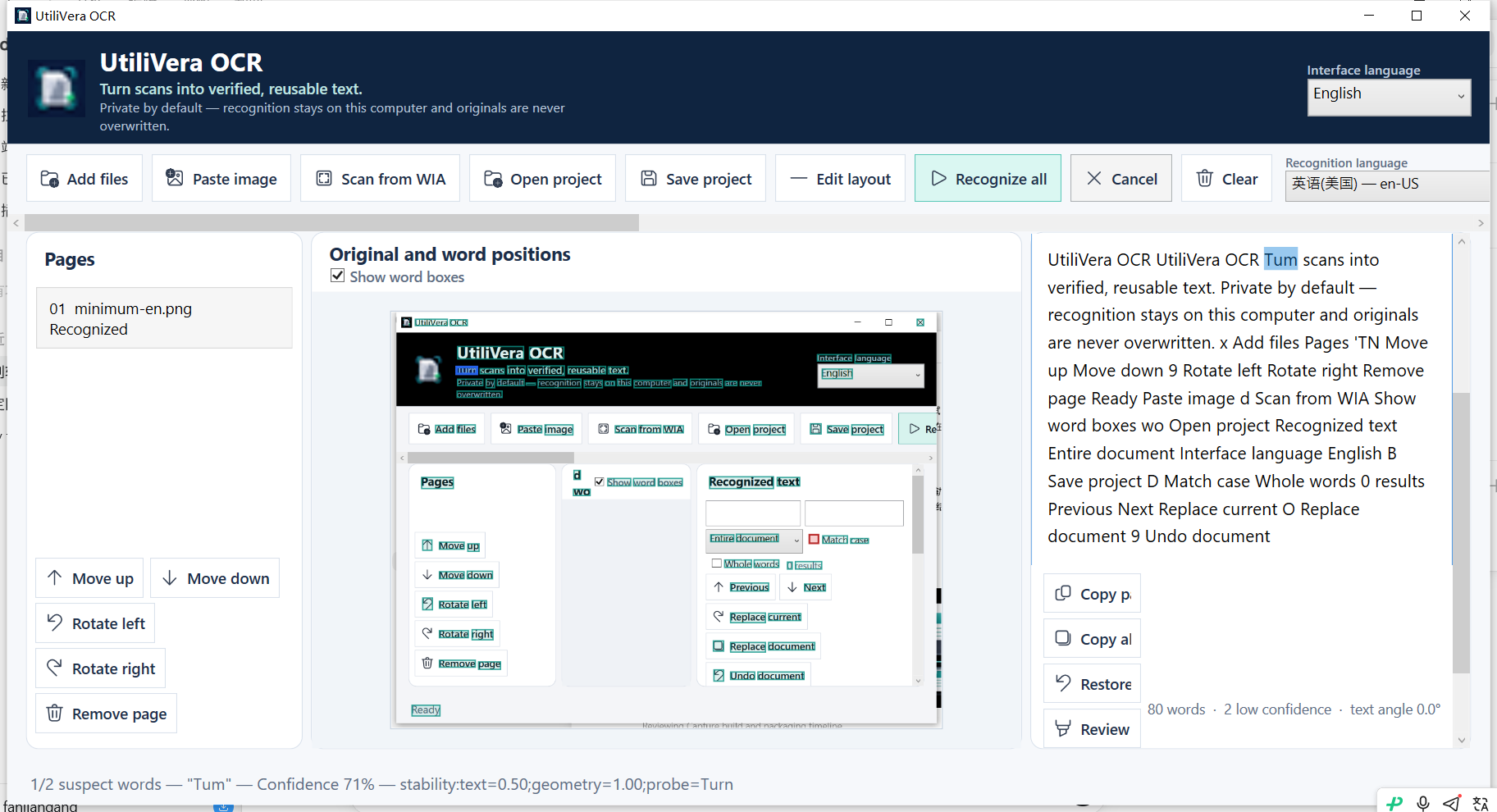
Inspect all 140 named test results · Verify this guide workflow · Verify artifact hashes
Failure modes and limits
Complex typography, handwriting, overlapping objects, and decorative forms may require manual region correction. Word pagination can differ from the fixed PDF page.
Always inspect names, codes, dates, totals, and negative signs. A confidence score helps prioritize review; it does not make an unchecked result authoritative. Stop when the processed preview removes content or when expected and actual structure differ.
Recovery and verification
Keep the original PDF and .uvocr project. If the DOCX layout is wrong, fix regions in the project and regenerate instead of manually rebuilding every OCR error in Word.
Record the input filename, page range, recognition language, processing settings, application version, output format, and a few known search terms or cell values. That record makes the result reproducible and explains what was checked.
Bound to one frozen build
These statements use the 346,624-byte executable with SHA-256 31E46DEC406F6FFF4A8CF68EB66E347234C2DB87EFAA32FAAC7A3EBF504C9784. The product audit passed; the current public installer is unsigned.
Frequently asked questions
Will the Word file look exactly like the scan?+
It keeps page images for visual fidelity and adds editable content, but a reflowable Word document can paginate differently.
Can it preserve tables?+
Yes, when the table is detected or corrected as a Table region. Always verify row and column structure.
Can I choose only some pages?+
Yes. Page ranges such as 1-3,5 avoid processing unneeded pages.
Official and primary sources
Links were checked August 15, 2026. External-product statements are limited to the cited vendor or standards source.
Continue the real workflow
Choose the next UtiliVera tool by task
UtiliVera OCR
Recognize locally. Verify visibly. Export deliberately.
The unsigned public installer is available now. Review the Windows warning and verify SHA-256 before running it.
View unsigned download details