Practical Windows guide
How to Find Duplicate Files on an External Hard Drive in Windows
To find duplicate files on an external hard drive in Windows, protect the trusted archive, scan ordinary data folders in exact-content mode, review SHA-256 groups, export a dry-run plan, and quarantine a small verified group before scaling up.
Public · unsigned · Keyword focus: find duplicate files on external hard drive WindowsFind exact duplicate files on an external hard drive in Windows. Protect the trusted archive, review SHA-256 groups, and quarantine before deleting.
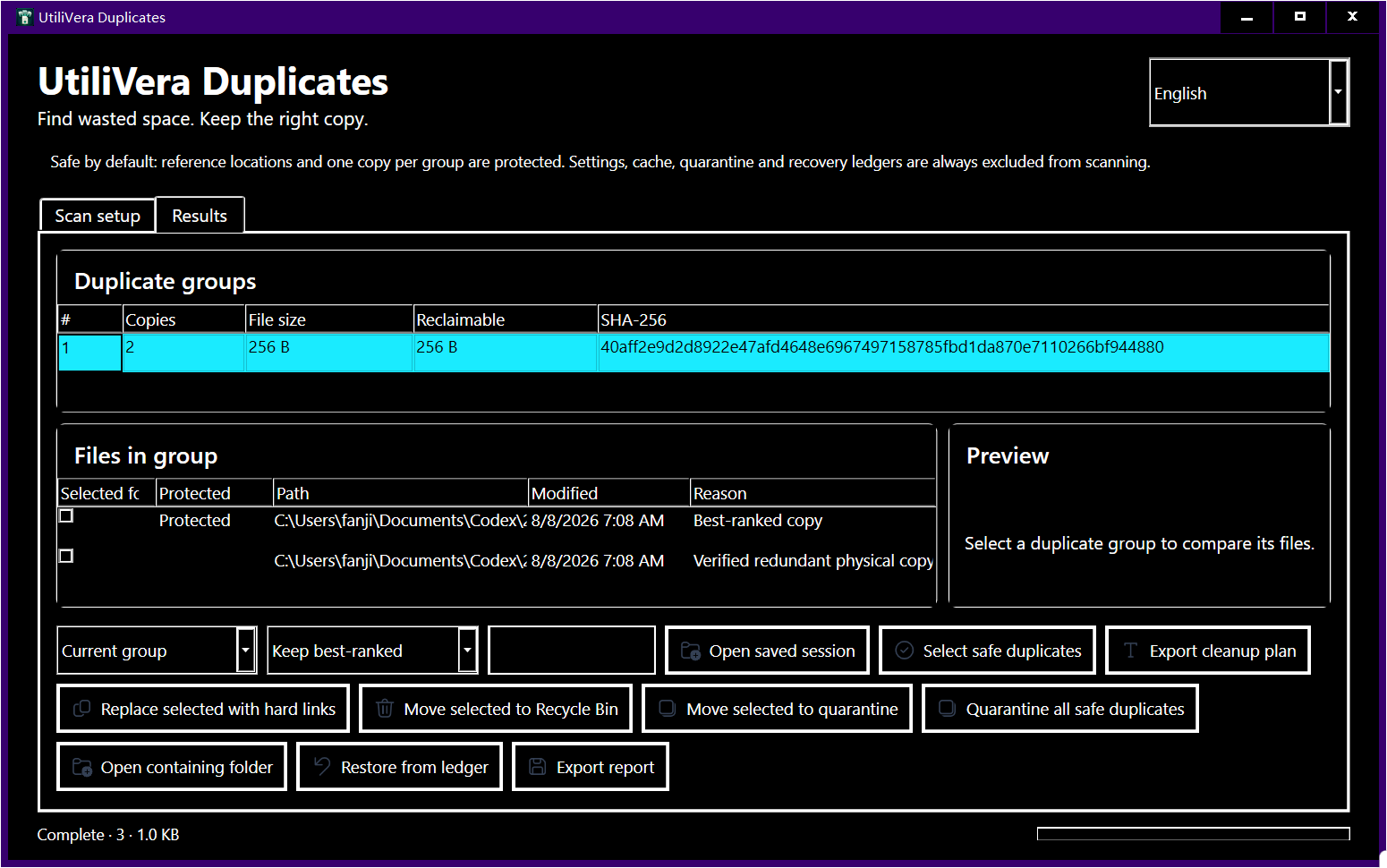
Choose a one-drive or two-drive comparison
For one crowded external drive, scan only ordinary data folders and keep system images, backup catalogs, and application internals excluded. For two drives, mark the curated archive as a protected reference and treat the second drive as the cleanup scope.
Hard links cannot cross volumes, so reclaim space with a reviewed quarantine or deletion workflow rather than a hard-link replacement. Real USB hardware, cables, sleep behavior, permissions, and Recycle Bin behavior vary; verify them on a copied test folder before any large cleanup.
Stabilize the drives before scanning
Let Windows finish mounting each drive and confirm that every folder is readable. Avoid a loose hub or cable, disable sleep for the short test, and pause backup or sync software that may be writing files. Record drive labels and volume identifiers instead of relying only on letters that can change.
Check the file system and free space. Recycle Bin behavior differs across removable media and configurations, so a dedicated quarantine folder on a drive with adequate space is often easier to verify and restore.
Choose a reference, not a winner rule
If one drive is the curated archive, mark it as protected. Add old laptop backups, downloads, exports, and second copies as normal locations. A reference means 'never select automatically'; it does not mean every file on that drive is newer or better.
Exclude Windows system images, backup catalogs, application databases, cloud-provider internals, and folders whose layout is controlled by another program. Identical bytes can be operationally required at two paths, so review location context before cleanup.
Prove exact identity and real savings
Group candidates by size and SHA-256, then compare the bytes before labeling a duplicate exact. Detect hard links and avoid promising space already shared. Across separate drives, hard links are impossible, so use copy, quarantine, or deletion workflows instead.
Calculate reclaimable bytes only for available local files. Offline placeholders, read errors, disconnected volumes, and permission failures should reduce confidence rather than appear as successful savings.
- Connect and label every drive
- Pause active backup jobs
- Protect the curated archive
- Scan a copied test folder first
- Review exact groups and paths
- Export the dry-run plan
- Quarantine and restore one file
- Scale up in bounded batches
Verify recovery across the real device boundary
Restore one quarantined file to its original external path, recompute SHA-256, and open it with the application that normally uses it. Eject and reconnect the drive, then confirm that the restored path and the saved session still resolve correctly.
Keep at least one independent backup until the entire cleanup has been reviewed. A duplicate scan is not a backup strategy, and reclaiming space should never be the event that removes the only known-good copy.
Product scope and reader verification
What the product audit covers—and what you must test
- Audited product capability
- Duplicates 0.9.0 tests cover exact hashing plus byte verification, reference protection, unavailable paths, quarantine, restore, and conservative reclaim accounting. The audited installer is publicly available and disclosed as unsigned while a trusted certificate is obtained.
- Task-level evidence status
- This article does not claim a frozen end-to-end run for this exact task. External-drive and duplex results depend on the real storage or scanner hardware; controlled or simulated evidence is labeled in the product audit.
- Important limits
- Drive disconnects, bad sectors, changing files, permission errors, cloud placeholders, and vendor backup formats can invalidate a scan. Do not clean opaque backup sets or system folders with a general duplicate finder.
- Reproducible acceptance check
- Keep the source, record the settings, process a representative copy, compare expected and actual page/file counts, dimensions, content, metadata, and hashes where relevant, then scale only after the small test passes.
Open the independent product audit → · Inspect this article version →
Frequently asked questions
Can I compare two external drives?+
Yes. Protect the trusted archive and review exact groups across the other locations.
Can hard links save space across drives?+
No. NTFS hard links require paths on the same volume.
Is deleting duplicates a replacement for backup?+
No. Keep an independent backup until cleanup and restore checks are complete.
Official and primary sources
Sources were checked August 21, 2026. Product statements are limited to the frozen UtiliVera audit; external technical statements follow the linked official source. The source-check record is public below.
UtiliVera Duplicates
Use a small verified test before the full job.
Review the current unsigned download, exact checksum, and Windows warning before installing.
View unsigned download details