Evidence-backed Windows guide
How to safely delete duplicate files on Windows
Find, verify, select, and remove duplicate files without deleting every copy or losing a trusted original.
Use exact-content comparison, protect a trusted reference folder, inspect the automatic selection reason, export a dry-run cleanup plan, and send removals to the Recycle Bin or a verified quarantine. Never auto-delete similar media or name-only matches.
Keyword focus: safely delete duplicate files WindowsStart with the folders that contain your own data
Scan documents, photo libraries, downloads, project exports, and backup copies you understand. Do not begin with Windows or application folders. Treat one curated location as the reference that must never be selected.
Use exact content for deletion decisions
Two equal names or sizes are not proof. UtiliVera first groups candidates with SHA-256, then verifies the bytes before it marks a group as exact. Approximate modes remain review-only.
Make a dry-run plan before changing files
A cleanup plan should name the protected copy, every proposed removal, the recovery destination, and the reclaimable bytes. Read the plan before choosing Recycle Bin, quarantine, or hard links.
- Add normal and reference locations
- Choose Exact content
- Scan and review groups
- Select safe duplicates
- Export the cleanup plan
- Use Recycle Bin or quarantine first
Verify recovery before scaling up
Restore one small test file and compare its SHA-256 with the original. Once the complete loop works, repeat the same saved profile on a larger collection.
First-party workflow evidence
Controlled input → mode → expected result → actual result
- Controlled corpus
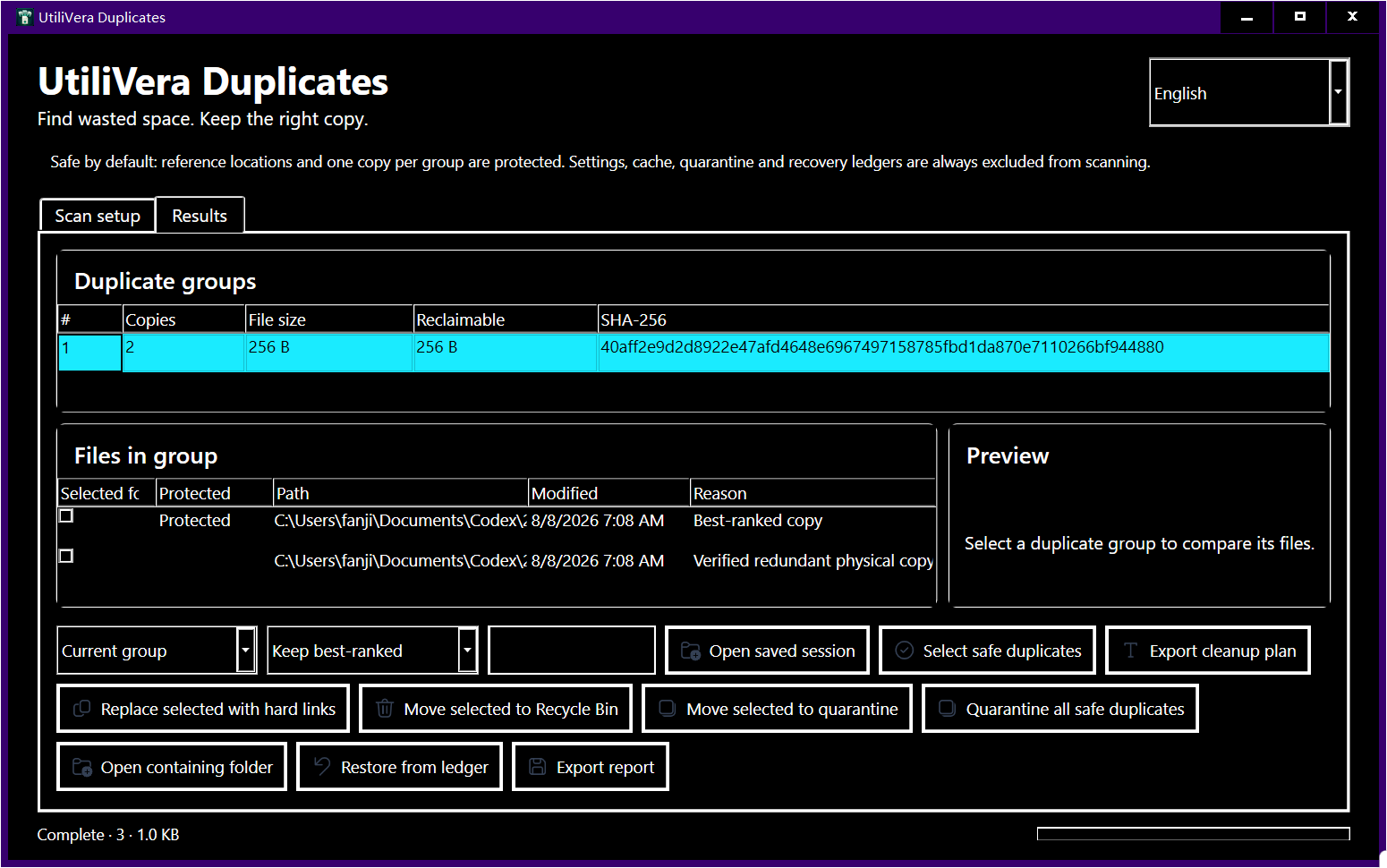
- A controlled folder contained one 256-byte original, one renamed byte-identical copy, one same-size file with different bytes, and a protected reference copy. The fixture was created before the scan and its hashes were recorded separately.
- Mode and parameters
- Exact content, reference-location protection enabled, dry-run export first, then quarantine and restore. SHA-256 was used to narrow candidates and the program performed a final byte comparison before classifying an exact group.
- Expected result
- Only the original and renamed copy belong to the exact group; the same-size different file stays out; the reference copy and the final remaining copy cannot be selected; restore returns identical bytes to the original path.
- Actual 0.9.0 result
- The frozen 0.9.0 engine returned the two exact candidates, excluded the different-content file, protected the reference keeper, generated a cleanup ledger, and restored the quarantined copy with the recorded SHA-256 unchanged. The public 73-test summary records these keeper, plan, quarantine, restore, and hash checks.
Failure modes and limits
An application can intentionally require identical files in separate folders. Exact proof answers whether bytes match; it does not decide whether both paths are operationally necessary. Avoid Windows, Program Files, active databases, sync-provider internals, and data you do not understand.
A scan result can become stale when a file changes after discovery. Revalidate before mutation, close applications that may be writing the files, keep sufficient free space for quarantine or recovery, and treat cloud placeholders as unavailable until they are fully local. A power loss, access-control change, antivirus quarantine, or another process locking a path can interrupt cleanup; the plan and ledger must remain reviewable rather than silently claiming success.
Verify recovery before a large job
Start with one test group. Send it to quarantine or the Recycle Bin, open the surviving copy, restore the removed path, and verify both the application behavior and file hash. Scale only after that complete loop succeeds.
Record the input paths, selected mode, application version, result count, proposed reclaimable bytes, and final hashes. That record turns a one-off cleanup into a repeatable procedure and makes it possible to explain why a file was selected. If expected and actual results differ, stop and preserve the exported report instead of compensating with manual bulk deletion.
Bound to one frozen build
These statements use the 353,792-byte executable with SHA-256 5F59977C69A25CCCB9569D1ED3F4F2D8043E2336CCFCD4C14933A623C754D727. The product audit passed; the current public installer is unsigned.
Frequently asked questions
Can Windows find duplicate files by itself?+
File Explorer can sort and search, but it does not provide a complete byte-verified duplicate grouping and recoverable cleanup workflow.
Is deleting duplicate files always safe?+
No. Some applications intentionally keep identical files in different locations. Review paths and protect reference folders before cleanup.
Should I permanently delete duplicates?+
Start with the Recycle Bin or quarantine. Permanent deletion should be reserved for verified data with a separate backup.
Intent-specific primary sources
This guide combines the frozen product’s public test evidence with the following official or primary technical references. Links were checked August 15, 2026.
Editorial method: claims about UtiliVera are accepted only when tied to the frozen hash and public evidence artifact. Claims about another product are limited to that vendor’s official page. Approximate matches are never described as proof, and the absence of a signed public installer remains visible.
Removable-drive workflow
Cleaning an external drive?
Use the dedicated external-drive duplicate workflow to protect a trusted reference folder, handle disconnected media, and verify recovery before a larger cleanup.
UtiliVera Duplicates
Verify first. Clean second. Recover when needed.
The unsigned public installer is available now. Review the Windows warning and verify SHA-256 before running it.
View unsigned download details