Practical Windows guide
How to scan to a password-protected PDF on Windows
Scan and verify the pages first, create a normal working project, choose AES-256 encryption only for the distribution PDF, use a unique strong password delivered through another channel, reopen the file with the correct and incorrect passwords, and keep an unencrypted protected master when retention policy requires future access.
Public · unsigned · Keyword focus: scan to password protected PDF WindowsCreate an encrypted PDF from paper while separating acquisition, OCR, password handling, permissions, verification, and archival requirements.
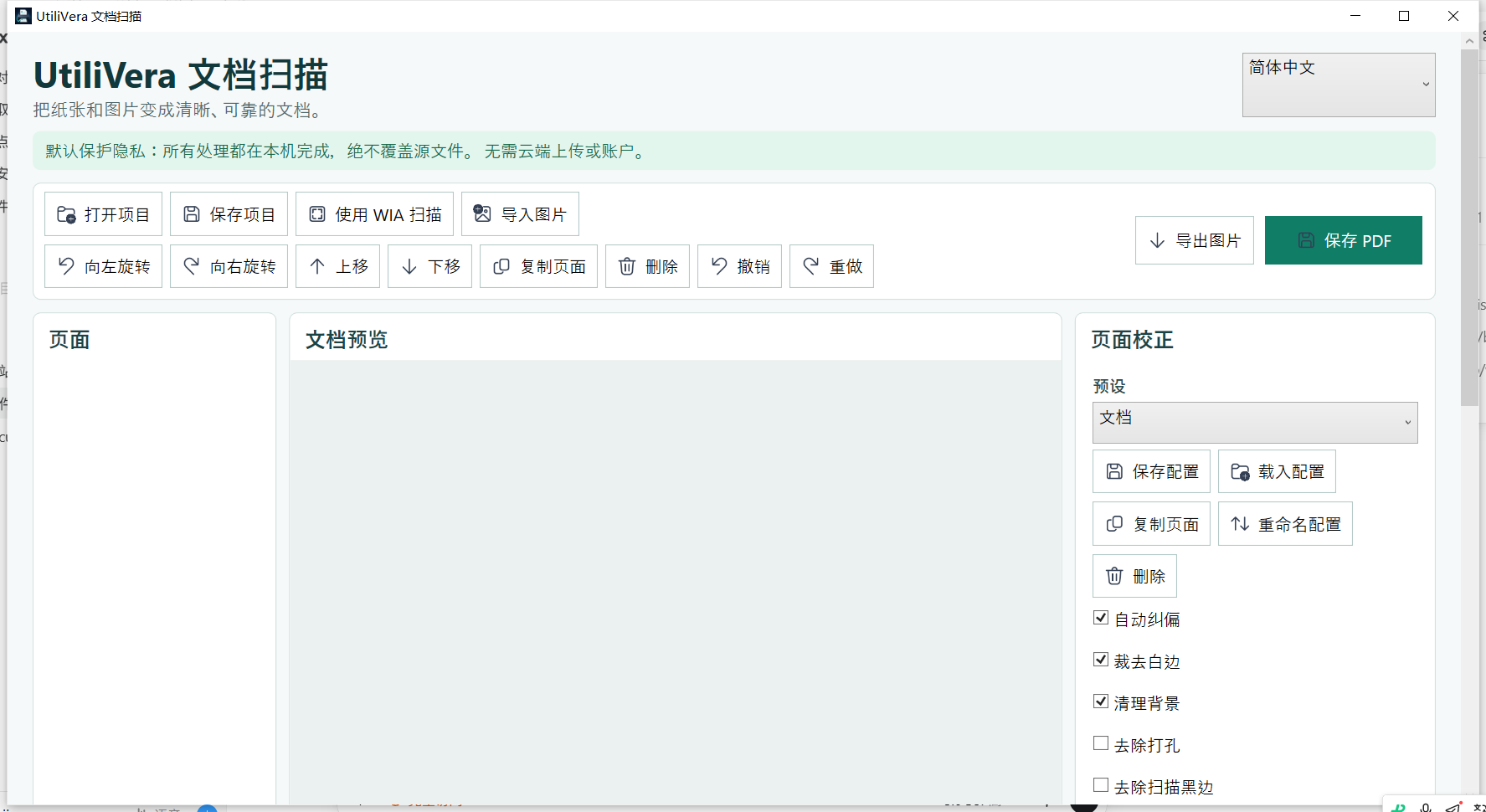
Separate scanning from encryption
Acquire, order, rotate, crop, and review the pages before adding a password. Encryption protects the finished file; it does not fix a missing page, unreadable scan, wrong orientation, or OCR error. Keep the working project in an access-controlled location while you verify the content.
Decide whether the recipient needs visual pages only or searchable text. OCR before final encryption, review sensitive names and numbers, and ensure the text layer does not expose content you intended to redact visually.
Choose passwords and permissions honestly
Use a unique, long password generated and stored by an approved password manager. Send the PDF and password through different channels. Do not place the password in the filename, email subject, adjacent message, or document metadata.
PDF permissions can request restrictions on printing, copying, editing, or assembly, but recipient software and policy determine how they are enforced. Treat encryption and access control as the security boundary, not a checkbox that promises perfect digital rights management.
Verify the encrypted output
Close the authoring application and open the exported PDF in a second viewer. Confirm that no page is visible with an incorrect password, the correct password opens every page, search works when intended, metadata is correct, and requested permissions are represented.
Record the output hash and storage location without recording the password in the same log. Test the recovery process before deleting intermediates; an encrypted file with a lost password may be permanently unavailable.
- Scan and order all pages
- Review image quality and OCR
- Save a protected working project
- Choose AES-256 and a unique password
- Export to a new filename
- Test wrong and correct passwords in another viewer
- Verify pages, search, metadata, and permissions
- Deliver the password separately
Do not confuse encrypted PDF with PDF/A
PDF/A is intended for long-term preservation and normally conflicts with encryption because future access should not depend on a password or decryption capability. Create an archival PDF/A master and a separate encrypted distribution PDF when both retention and confidential delivery are required.
Follow organizational retention, legal, and privacy policy. Encryption does not hide sensitive information from a recipient who has the password, and it does not replace secure endpoints, access revocation, or a documented sharing process.
Product scope and reader verification
What the product audit covers—and what you must test
- Audited product capability
- Scan 0.5.2 documents AES-256 encrypted PDF with permissions and Unicode metadata, and separately tests that its PDF/A path rejects encryption by design. The public installer is available unsigned; Windows may show ‘Unknown publisher,’ and trusted signing will be added later.
- Task-level evidence status
- This article does not claim a frozen end-to-end run for this exact task. External-drive and duplex results depend on the real storage or scanner hardware; controlled or simulated evidence is labeled in the product audit.
- Important limits
- Password security depends on password strength, storage, delivery, recipient behavior, and viewer implementation. PDF permissions are not equivalent to revocable access control. Losing the password can make the document unrecoverable.
- Reproducible acceptance check
- Keep the source, record the settings, process a representative copy, compare expected and actual page/file counts, dimensions, content, metadata, and hashes where relevant, then scale only after the small test passes.
Open the independent product audit → · Inspect this article version →
Frequently asked questions
Can a password-protected PDF also be PDF/A?+
Normal PDF/A preservation goals conflict with encryption. Keep separate archival and encrypted distribution copies.
Should the password be emailed with the PDF?+
No. Deliver it through a separate approved channel.
Can I recover a forgotten PDF password?+
Do not assume so. Test password storage and recovery before deleting an accessible master.
Official and primary sources
Sources were checked August 21, 2026. Product statements are limited to the frozen UtiliVera audit; external technical statements follow the linked official source. The source-check record is public below.
Continue the real workflow
Choose the next UtiliVera tool by task
UtiliVera Scan
Use a small verified test before the full job.
Review the current unsigned download, exact checksum, and Windows warning before installing.
View unsigned download details