Practical Windows guide
How to annotate a screenshot on Windows
Keep the original capture, annotate an editable copy with a small visual vocabulary, use numbered steps for order, crop only after preserving context, apply permanent redaction rather than movable shapes for secrets, and export a flattened PNG that you reopen and inspect before sharing.
Public · unsigned · Keyword focus: annotate screenshot WindowsAdd arrows, numbered steps, text, highlights, and permanent redaction while keeping an untouched screenshot and an editable project.
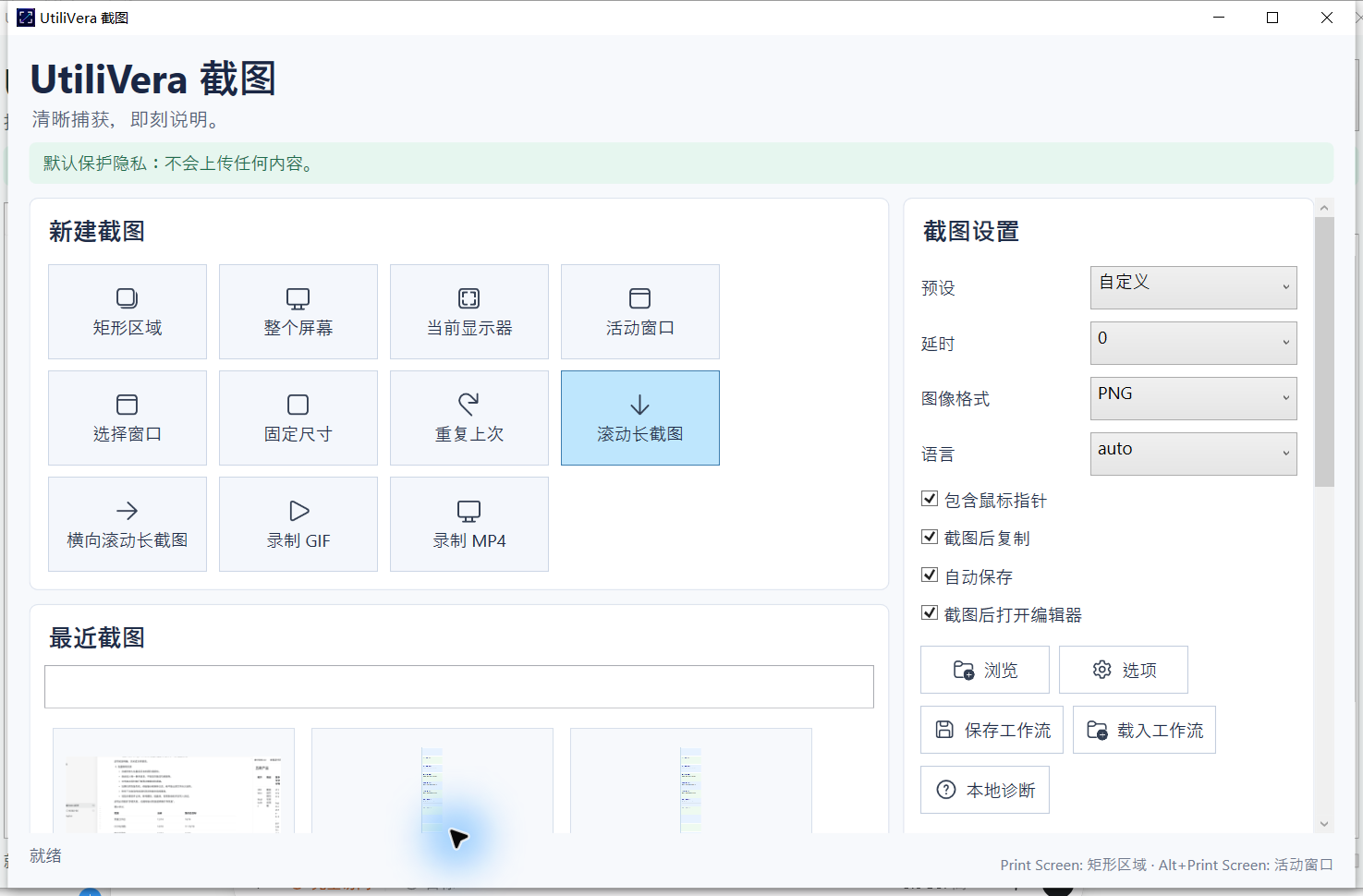
Capture enough context
Choose a region, window, or display that includes the information the reader needs without exposing unrelated private data. Capture at the final scaling when possible so text remains sharp. Decide whether the mouse pointer explains the action or merely covers the target.
Keep the untouched PNG. It lets you change the crop, repair a mistaken annotation, and prove what the original screen showed. The annotated deliverable should be a new file, not a destructive edit of the only capture.
Use a restrained annotation system
Pick one accent color with sufficient contrast and use it consistently for arrows, rectangles, and numbered steps. Place labels outside the control when possible, avoid covering UI text, and keep stroke widths readable after the image is reduced in email or documentation.
Number steps only when order matters. One screenshot should communicate one action or decision; several clean frames are usually easier to follow than one image crowded with ten arrows.
Separate highlighting from redaction
Blur and pixelation visually obscure content but can leave recognizable structure. A movable black rectangle is still an annotation until export and can be removed from an editable project. Permanent redaction must replace the selected output pixels and be verified in the flattened file.
Search the entire capture for names, email addresses, account numbers, browser tabs, notifications, filenames, QR codes, and background windows. Crop and redact deliberately, then reopen the exported PNG in a different viewer.
- Save the original capture
- Crop only unnecessary context
- Add one accent color
- Use arrows and numbered steps sparingly
- Apply permanent redaction to secrets
- Export a separate PNG
- Reopen at 100% and inspect every edge
Preserve editability and an audit trail
Save an annotation project when the image may need localization, another step number, or a different crop. Record the application version and export dimensions for documentation that must be regenerated consistently.
For support or compliance evidence, keep the original, project, flattened deliverable, and a note describing what was redacted. Do not imply that an annotation proves the underlying event; it explains a captured view.
Product scope and reader verification
What the product audit covers—and what you must test
- Audited product capability
- Capture 0.6.0 evidence covers region/window/display capture, crop, arrows, numbered steps, annotation projects, flattened export, and auto-redaction checks. The public installer is available unsigned; Windows may show ‘Unknown publisher,’ and trusted signing will be added later.
- Task-level evidence status
- This article does not claim a frozen end-to-end run for this exact task. External-drive and duplex results depend on the real storage or scanner hardware; controlled or simulated evidence is labeled in the product audit.
- Important limits
- Annotations can hide context or imply causality. Blur and pixelation are not dependable confidentiality boundaries; verify permanent redaction in the exported bitmap and retain the original securely.
- Reproducible acceptance check
- Keep the source, record the settings, process a representative copy, compare expected and actual page/file counts, dimensions, content, metadata, and hashes where relevant, then scale only after the small test passes.
Open the independent product audit → · Inspect this article version →
Frequently asked questions
Can Windows Snipping Tool annotate screenshots?+
Yes, it supports common pen and markup workflows. A project-based tool adds recoverable objects, numbering, repeatable export, and stronger redaction review.
Is a black rectangle permanent redaction?+
Only after it is flattened into the exported pixels and the result is independently inspected.
Should I overwrite the original screenshot?+
No. Keep the original and export an annotated copy.
Official and primary sources
Sources were checked August 21, 2026. Product statements are limited to the frozen UtiliVera audit; external technical statements follow the linked official source. The source-check record is public below.
UtiliVera Capture
Use a small verified test before the full job.
Review the current unsigned download, exact checksum, and Windows warning before installing.
View unsigned download details