Optical disc backup
How to copy a CD or DVD to ISO on Windows
A data CD or DVD in the tray is one hardware failure away from disappearing. “Copy CD to ISO” means make a file you can mount, extract, or store — on this PC, not in a browser that asks you to upload a disc you cannot upload.
Folder copy versus ISO copy
Dragging files off a data CD into a folder keeps the documents. It drops boot information, volume metadata, and the “this was a disc” layout. An ISO is the disc as a file. Mount it later and the letter looks like the original tray.
That is the difference between “I saved the PDFs” and “I copied the CD to ISO.”
Steps
- Open the optical drive in Disc Studio with File → Open CD / DVD / Blu-ray.
- Browse the tree so you know the disc is readable.
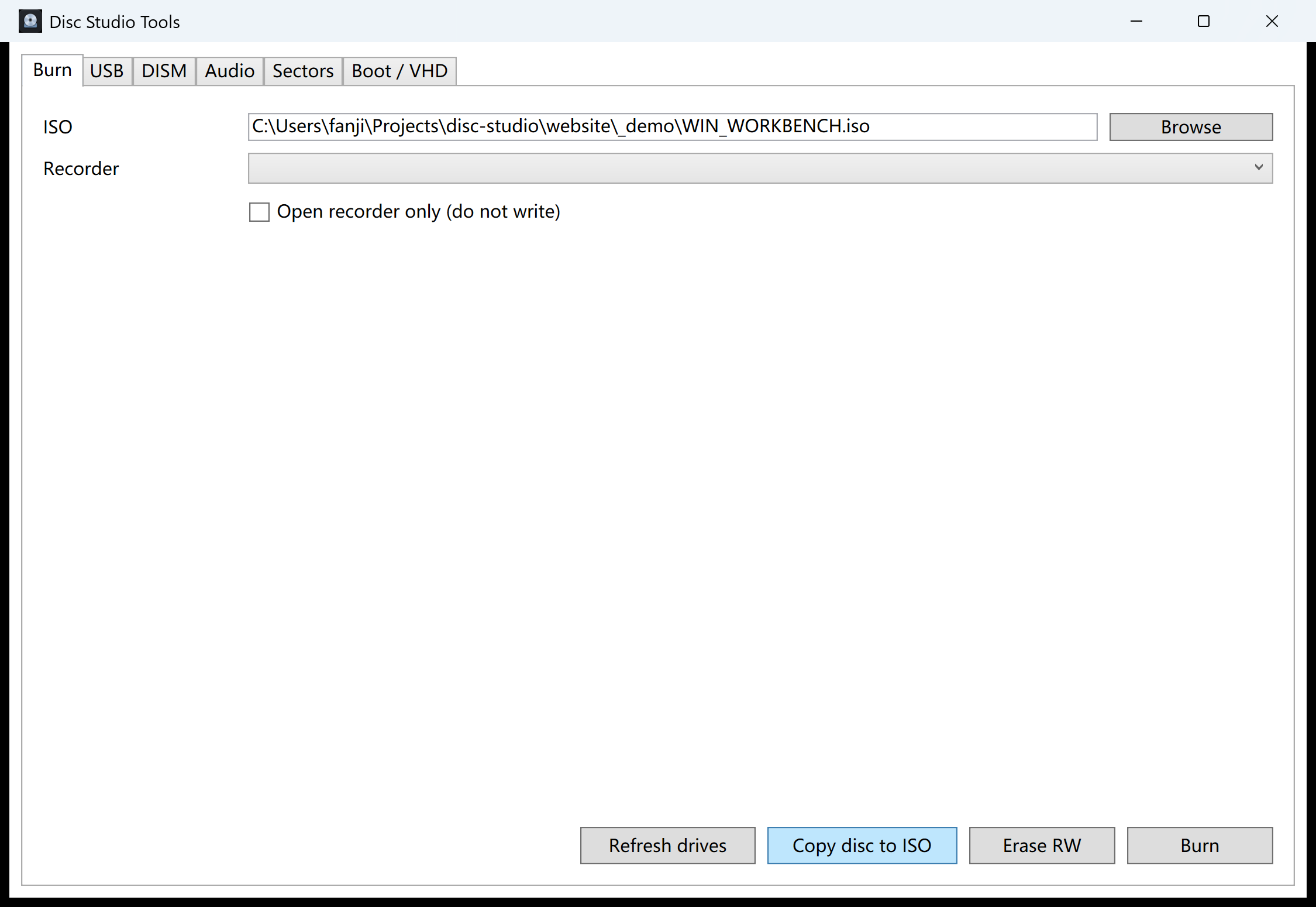
- Copy disc to ISO from the Tools window. Pick a folder with more free space than the disc size.
- Open the ISO and compare a few files. Then mount it when you need a letter, or extract when you only need a path.
What this build will not pretend to do
True CD-DA burning, VCD authoring, CDDB, and CD-TEXT are not included. Windows IMAPI also cannot incrementally append to a disc that was never finalized. This page is about reading a data disc into an ISO, not cloning every consumer video format.
If the next job is a USB installer, you already have the ISO. Use the bootable USB guide instead of copying the physical disc a second time.
Questions people ask next
Can Windows copy a CD to ISO without extra software?
Not as a one-click ISO. Explorer can copy files off a data disc, but that is a folder, not a disc image.
Does this copy audio CDs as a Red Book image?
This build does not do true CD-DA burning or CD-TEXT. Data discs are the ISO path. Audio tracks can be extracted as WAV or BIN when the disc exposes them.
Will a scratched disc become a perfect ISO?
No. A bad read stays a bad read. Try a second drive if the first one retries forever.
Can I copy a copy-protected commercial movie disc?
A workbench will not unlock CSS or similar protection. Use discs you are allowed to back up.