Practical Windows guide
How to convert a scanned PDF to Excel on Windows
OCR the relevant pages locally, separate titles and notes from table regions, verify row and column boundaries against the scan, correct suspect numbers, export XLSX, and compare dimensions, totals, dates, decimal separators, and negative signs before using formulas.
Public · unsigned · Keyword focus: convert scanned PDF to Excel WindowsExtract tables from scanned PDF pages into reviewable XLSX files without silently losing titles, rows, columns, totals, or negative signs.
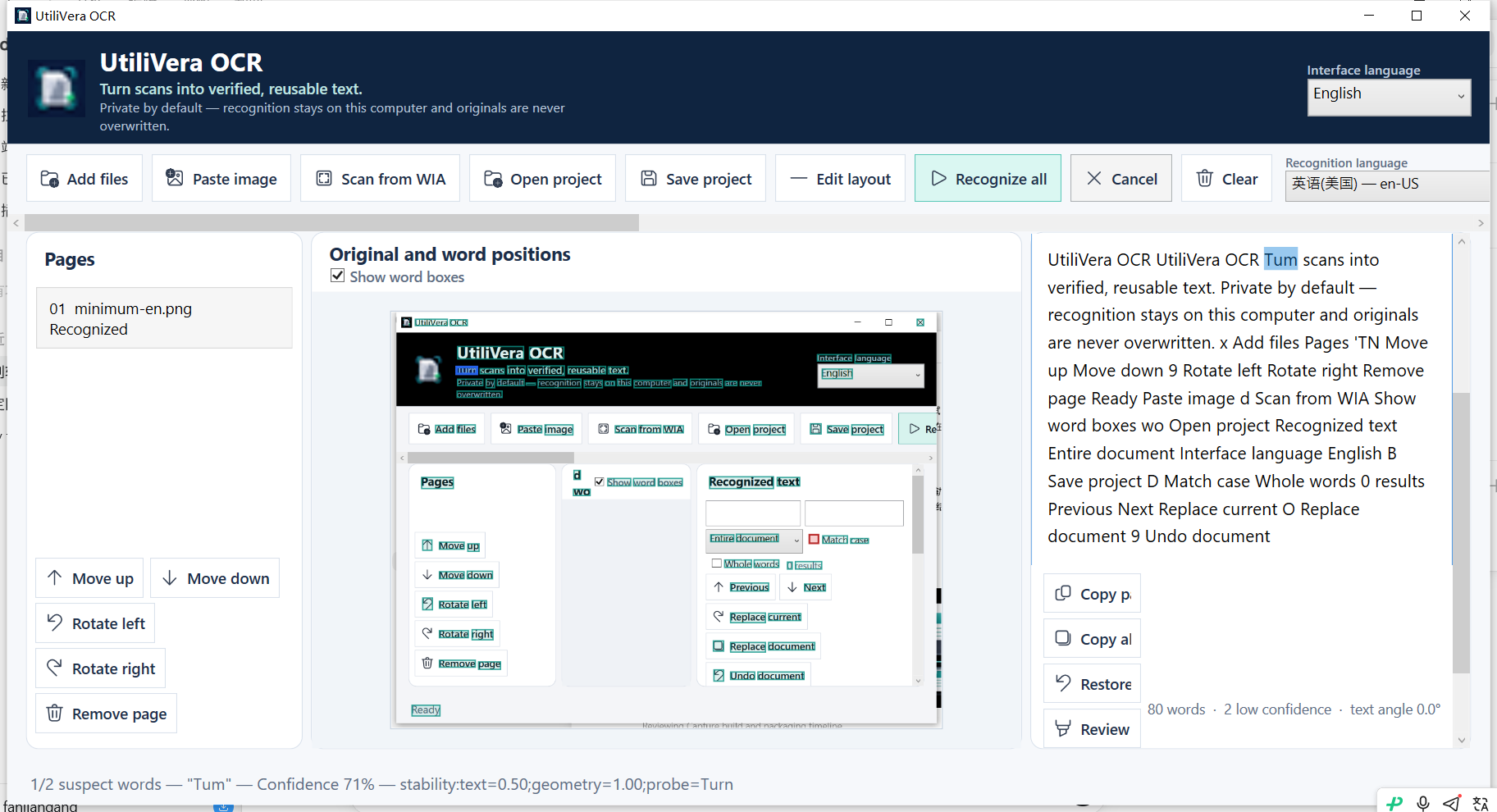
Decide whether the page contains a real table
A visible grid is not automatically a machine-readable table. Scans can contain merged cells, wrapped headers, repeated page headings, footnotes, stamps, handwritten corrections, and columns separated only by whitespace. Identify the rectangle that belongs in Excel and keep surrounding text as separate regions.
Choose only the pages that contain the needed tables. Retain the PDF as the visual authority; the spreadsheet is a derived data set that must be checked before calculation or import.
Correct geometry before correcting text
Deskew and perspective correction can make rows align, but an aggressive crop can remove the first or last column. Confirm the processed preview before recognition. For faint rules, use the least destructive cleanup that leaves characters intact.
Select the document language and number conventions deliberately. Commas and periods can be thousands or decimal separators, while parentheses and minus signs can change financial meaning.
Review structure and high-risk cells
Mark titles as Text and the grid as Table. Count source rows and columns, inspect merged cells, and set reading order. Review account numbers, dates, totals, percentages, decimal points, and negative values even when the confidence score is high.
Do not repair a structural error only in Excel and then lose the source mapping. Save the OCR project, correct the region or cell grouping, and regenerate so the workflow remains reproducible.
- Choose the PDF pages
- Correct rotation or perspective
- Recognize with the right language
- Separate Text and Table regions
- Count rows and columns
- Review high-risk values
- Export XLSX
- Compare dimensions and totals with the scan
Validate the workbook before analysis
Open the XLSX in Excel, confirm sheet names, row and column counts, cell types, and ordering. Compare a sample from the top, middle, and bottom of every table. Use formulas only after the extracted values reconcile with printed totals or another trusted source.
Keep the PDF, project, XLSX, version, and verification notes together. When a table is too irregular, exporting reviewed text or entering a small number of cells manually can be safer than presenting an unreliable spreadsheet as structured truth.
Product scope and reader verification
What the product audit covers—and what you must test
- Audited product capability
- OCR 0.7.0 evidence includes a controlled 4×3 table, Text plus Table regions, project round-trip, named OCR results, and XLSX export in the documented 13-format set. Public signing remains pending.
- Task-level evidence status
- This article does not claim a frozen end-to-end run for this exact task. External-drive and duplex results depend on the real storage or scanner hardware; controlled or simulated evidence is labeled in the product audit.
- Important limits
- Merged cells, borderless layouts, handwriting, poor scans, multi-line headers, and locale-specific numbers can require manual correction. OCR cannot validate the business meaning of extracted values.
- Reproducible acceptance check
- Keep the source, record the settings, process a representative copy, compare expected and actual page/file counts, dimensions, content, metadata, and hashes where relevant, then scale only after the small test passes.
Open the independent product audit → · Inspect this article version →
Frequently asked questions
Can a scanned PDF become a real Excel table?+
Yes when OCR and layout review identify the correct rows and columns; verify every important value.
Will titles become table rows?+
They should remain separate Text regions when the layout is corrected before export.
Can I delete the PDF after export?+
No. Keep it as the visual source and audit record.
Official and primary sources
Sources were checked August 21, 2026. Product statements are limited to the frozen UtiliVera audit; external technical statements follow the linked official source. The source-check record is public below.
Continue the real workflow
Choose the next UtiliVera tool by task
UtiliVera OCR
Use a small verified test before the full job.
Review the current unsigned download, exact checksum, and Windows warning before installing.
View unsigned download details