Practical Windows guide
How to batch convert TIFF to JPG on Windows
Keep the TIFF originals, send JPG copies to a separate folder, choose whether each TIFF page becomes a separate JPG, preserve the ICC profile, flatten transparency onto a deliberate background, and inspect one detailed output before running the complete batch.
Public · unsigned · Keyword focus: batch convert TIFF to JPG WindowsCurrent delivery: Image 0.8.1 is an unsigned Inno Setup installer. Windows may show “Unknown publisher.” Review the checksum and certificate-pending notice before downloading.
Convert a folder of TIFF files to compatible JPG copies while deciding how to handle multipage pages, color profiles, transparency, names, and originals.
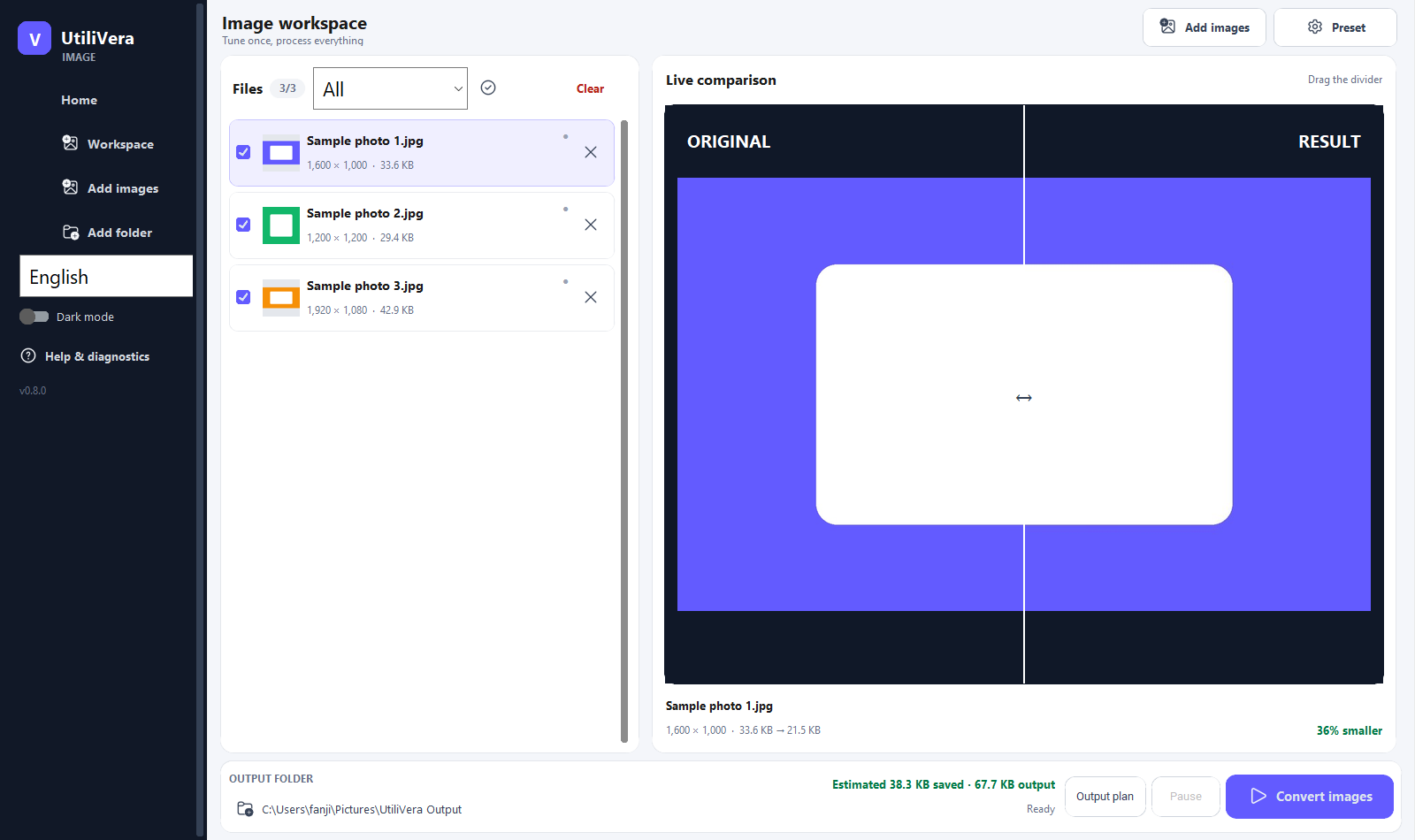
Decide what one TIFF should become
TIFF is a container rather than one simple image recipe. A file can hold one page or many pages, different bit depths, alpha transparency, layers, compression schemes, and metadata. Before adding a folder, decide whether you need the first page only, every page as a numbered JPG, or a different output such as PDF for documents.
JPG holds one flattened raster image and has no alpha channel. A multipage scan therefore needs a page-to-file naming rule, while a transparent illustration needs a chosen background color. Make these decisions explicitly instead of accepting a silent first-page or black-background result.
Protect color and useful metadata
Preserve the embedded ICC profile when predictable color matters. Do not assume a viewer's appearance proves that a profile survived; inspect the output metadata and open a sample in the destination program. For public copies, decide separately whether EXIF, XMP, dates, captions, and GPS data should remain.
JPEG quality values are encoder-specific. Start around quality 88 for detailed photographs, enable optimization, and compare fine text, line art, gradients, and fabric at 100%. For bilevel scans or diagrams, PNG may preserve edges better than JPG even when the receiving system accepts both.
Plan names for pages and folders
Write outputs to a new root and preserve relative folders. For multipage files, include the source stem and a padded page token such as report-p001.jpg. Preview every destination path before conversion so page expansion cannot create collisions with existing files or with another TIFF of the same name.
Keep replacement disabled. If a job must be repeated with another quality or background, delete the isolated output folder and rerun the saved recipe. That is safer than mixing several generations beside the archival TIFF masters.
- Add a copied test folder
- Choose JPEG and a separate output root
- Set the multipage page rule and naming token
- Preserve ICC and choose metadata policy
- Inspect Output Plan
- Convert one representative TIFF
- Verify every page, dimensions, color, and names
- Run the folder and review the report
Verify the result instead of trusting the extension
Open one single-page photo, one multipage document, one transparent source, and one high-bit-depth source when those variants exist. Confirm page count, pixel dimensions, orientation, background, color, file size, and the metadata policy. A .jpg extension alone proves none of those properties.
Record skipped or unsupported compression variants in the batch report. Keep the source when a decoder warns, when a page count differs, or when a scientific or archival TIFF carries data that a display-oriented JPEG cannot represent.
Product scope and reader verification
What the product audit covers—and what you must test
- Audited product capability
- The frozen Image 0.8.0 capability catalog routes TIFF input and separately verifies JPEG output. This guide uses the audited queue, output planner, multipage editor, ICC and metadata controls; it does not claim that every historical TIFF compression is losslessly representable in JPEG.
- Task-level evidence status
- This article does not claim a frozen end-to-end run for this exact task. External-drive and duplex results depend on the real storage or scanner hardware; controlled or simulated evidence is labeled in the product audit.
- Important limits
- JPEG is lossy, single-page, normally 8-bit display output. It cannot preserve TIFF layers, arbitrary channels, alpha, every metadata block, or scientific sample precision. Retain TIFF masters and test unusual files individually.
- Reproducible acceptance check
- Keep the source, record the settings, process a representative copy, compare expected and actual page/file counts, dimensions, content, metadata, and hashes where relevant, then scale only after the small test passes.
Open the independent product audit → · Inspect this article version →
Frequently asked questions
Can one multipage TIFF become several JPG files?+
Yes, when the workflow explicitly exports each page and includes a page token in the output name.
Will TIFF transparency survive in JPG?+
No. Choose a background before flattening, or use PNG when transparency must remain.
Should scanned text be saved as JPG?+
Only when the destination requires it. PNG, TIFF, or searchable PDF can be better for sharp text or multipage documents.
Official and primary sources
Sources were checked August 21, 2026. Product statements are limited to the frozen UtiliVera audit; external technical statements follow the linked official source. The source-check record is public below.
Continue the real workflow
Choose the next UtiliVera tool by task
UtiliVera Image
Use a small verified test before the full job.
Review the current unsigned download, exact checksum, and Windows warning before installing.
View unsigned download details