Compress to exact KB
How to Compress an Image to an Exact KB Limit on Windows
In UtiliVera Image, choose a lossy output such as JPEG, WebP, or AVIF, enter the target size in KB, and preview the result. The application searches encoder quality automatically, applies the rule per image, and records the final size in the batch report.
No upload · no account · processed in this browserWatch the 42-second workflow tour →Image 0.8.1 is unsigned. Windows may show “Unknown publisher.” Download only from utilivera.com and verify SHA-256.Use this task in browserGovernment portals, job applications, marketplaces, and content systems often reject an image above a strict size limit. Repeatedly moving a quality slider is slow and unreliable; a target-size search can find the highest practical quality that fits the requested kilobytes.
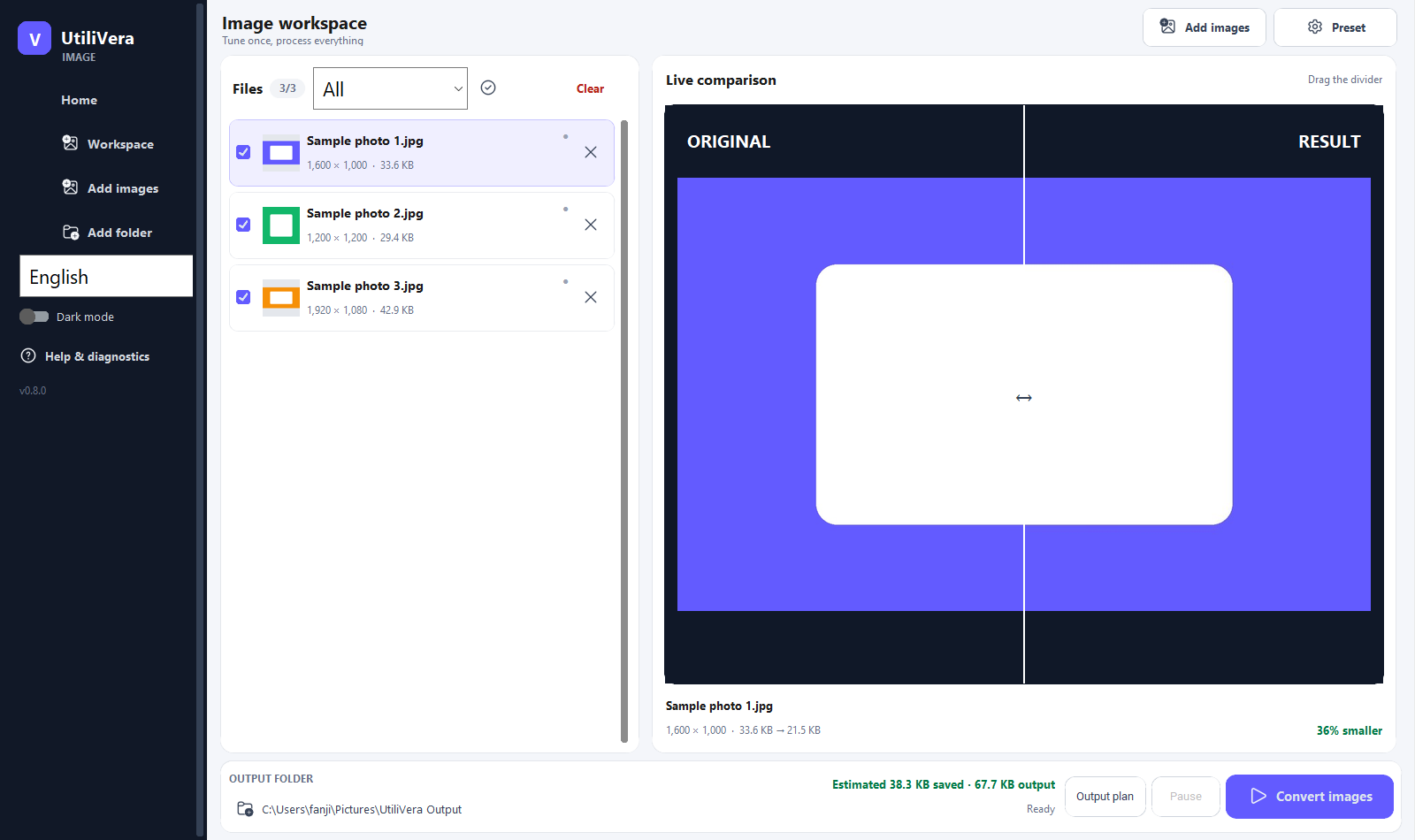 Open the full-size interface image
Reproducible task evidence
Input → parameters → output → verification
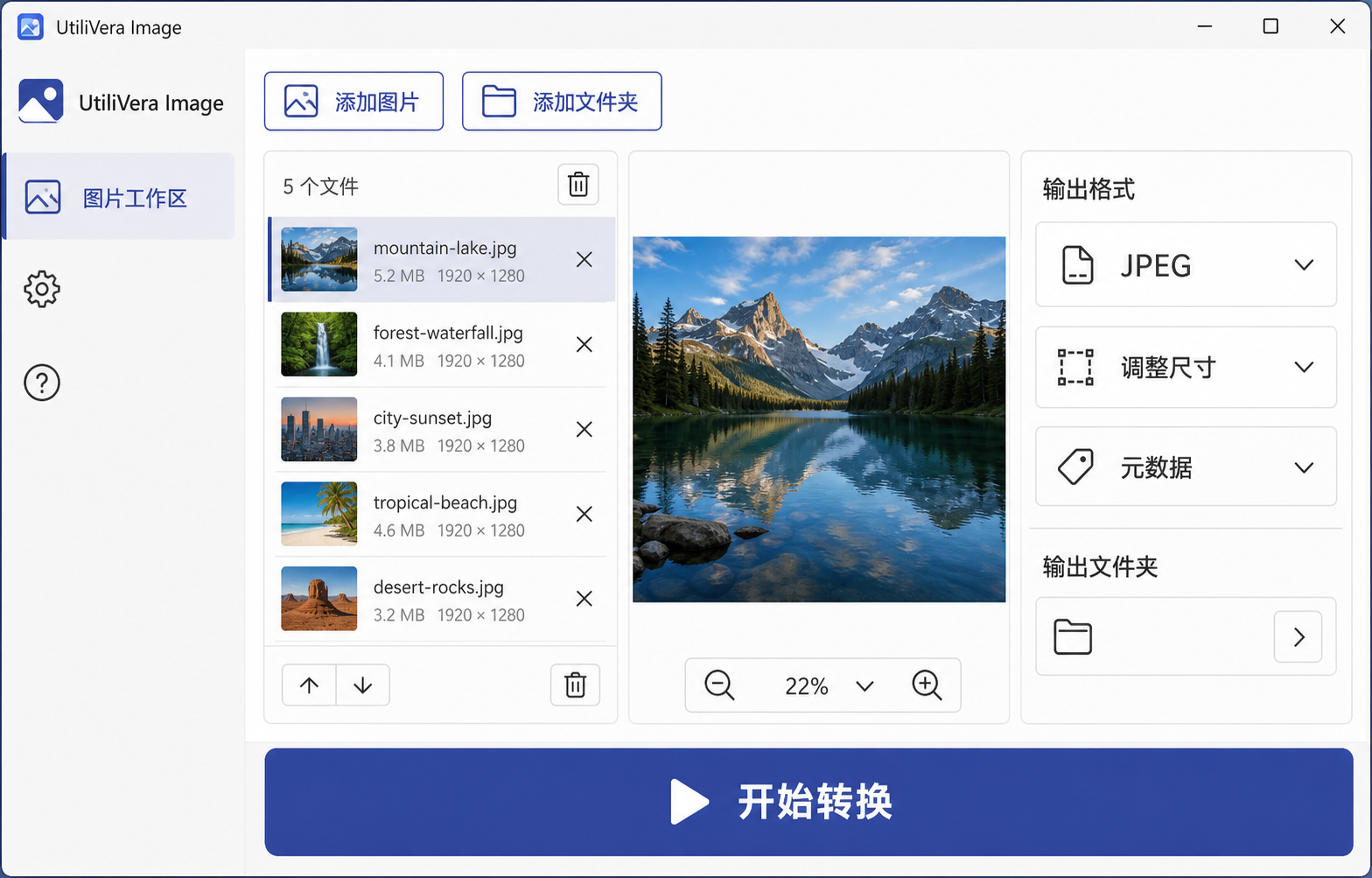 Open full-size input
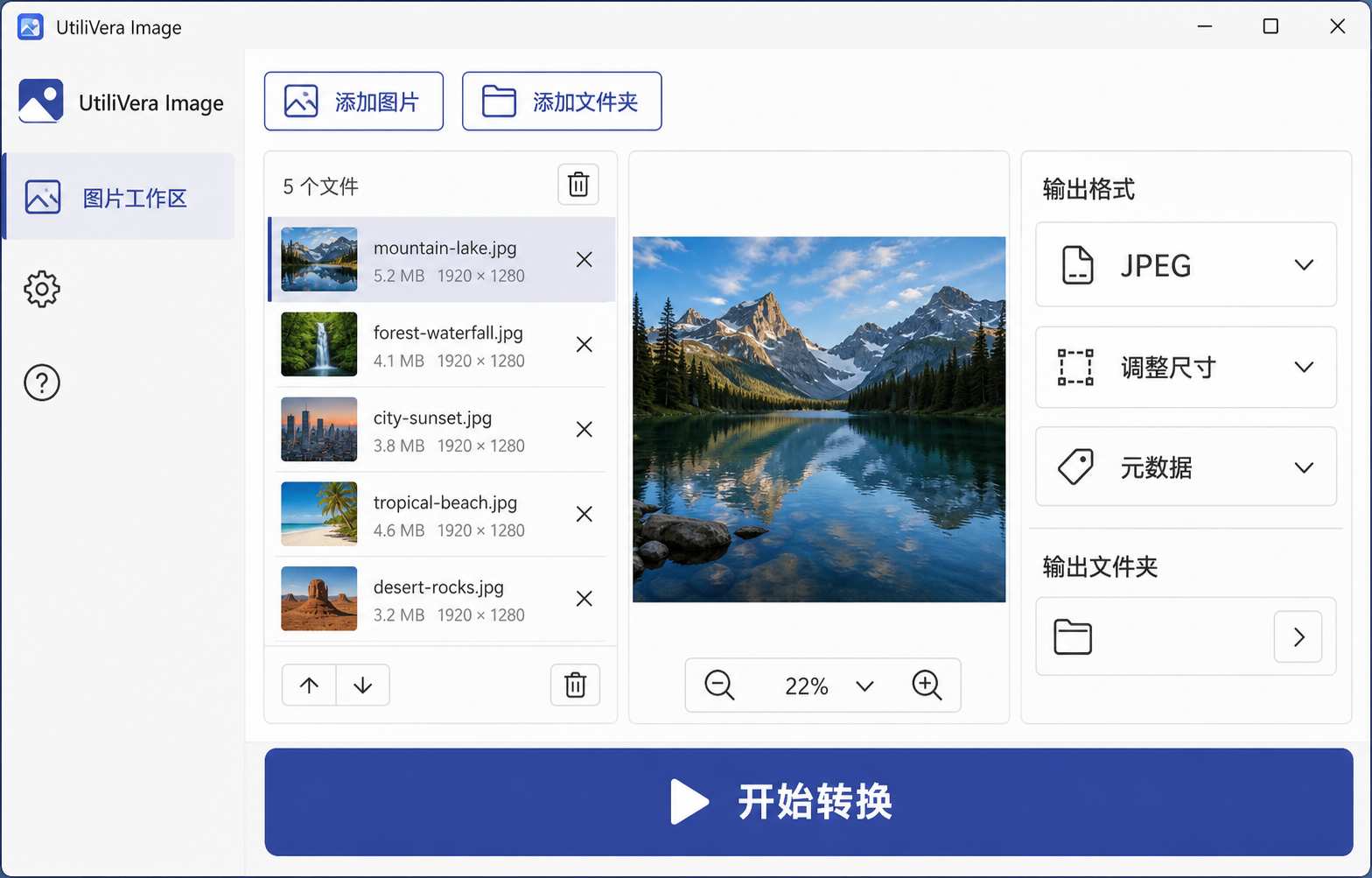 Open full-size result
- Parameters
- PNG → JPEG · target 100 KiB · Remove GPS
- Verification
- Actual result: 101,584 bytes, below 102,400 bytes. Dimensions, bytes, and SHA-256 are recorded in the public manifest.
Start with the destination's real requirements
Confirm the maximum bytes, accepted formats, required pixel dimensions, aspect ratio, and whether metadata must remain. A portal that says 500 KB may enforce 500,000 bytes rather than 512,000 bytes, so leave a small operational margin when rejection would be costly.
Choose JPEG for maximum compatibility, WebP for many modern web workflows, or AVIF when smaller delivery files justify slower encoding. PNG is lossless and may not reach a very small target for a complex photograph.
Reduce dimensions before sacrificing quality
If the destination displays an image at 1200 pixels, reduce a 6000-pixel source first. Correct dimensions remove information the destination cannot show and usually preserve visible quality better than forcing a full-resolution image into a tiny byte budget.
Enable Never enlarge, select a high-quality downsampling filter, and inspect the final display size as well as a 100% crop. Faces, text, gradients, and fine repeating patterns expose different compression problems.
Let the encoder search the quality range
Enter the target KB value instead of guessing at a quality number. UtiliVera tests encoder settings and keeps the highest practical result at or below the target. Each input is evaluated independently because two images with identical dimensions can compress very differently.
Target-size mode applies to ordinary single images. Animated and multi-page inputs require a format and workflow that preserve their frames or pages, so they are not treated as one flat target-size photograph.
Account for metadata and verify the final bytes
EXIF, XMP, ICC profiles, and embedded previews consume bytes outside the visible pixels. Remove GPS or unnecessary metadata when privacy and size matter, but preserve the ICC profile when predictable color is required.
Review the planned output, run the batch locally, and confirm the reported byte count. Keep the originals and use a separate output folder so a portal-specific delivery copy never replaces the archival source.
Verified release
Test the workflow, not a marketing promise.
Version 0.8.1 preserves the 97.1/100 Top-5 product baseline and adds exact-binary regression, archive, installer, localization, and real 0.8.0→0.8.1 upgrade evidence.
Read the audit summary →Frequently asked questions
Can every image be compressed to any requested size?+
No. Extremely small targets can make acceptable quality impossible, especially with fixed dimensions or lossless formats. Reduce dimensions or choose a more efficient lossy format when necessary.
Is 500 KB the same as 500,000 bytes?+
Not always. Portals may use decimal or binary units. Leave a small margin and verify the actual output bytes.
Does target-size compression upload the image?+
No. UtiliVera performs the search and encoding locally on the Windows PC.
Sources checked
Format, workflow, and comparison details were checked against the primary or official pages below on August 9, 2026.