Batch WebP to JPG
How to Batch Convert WebP to JPG on Windows Offline
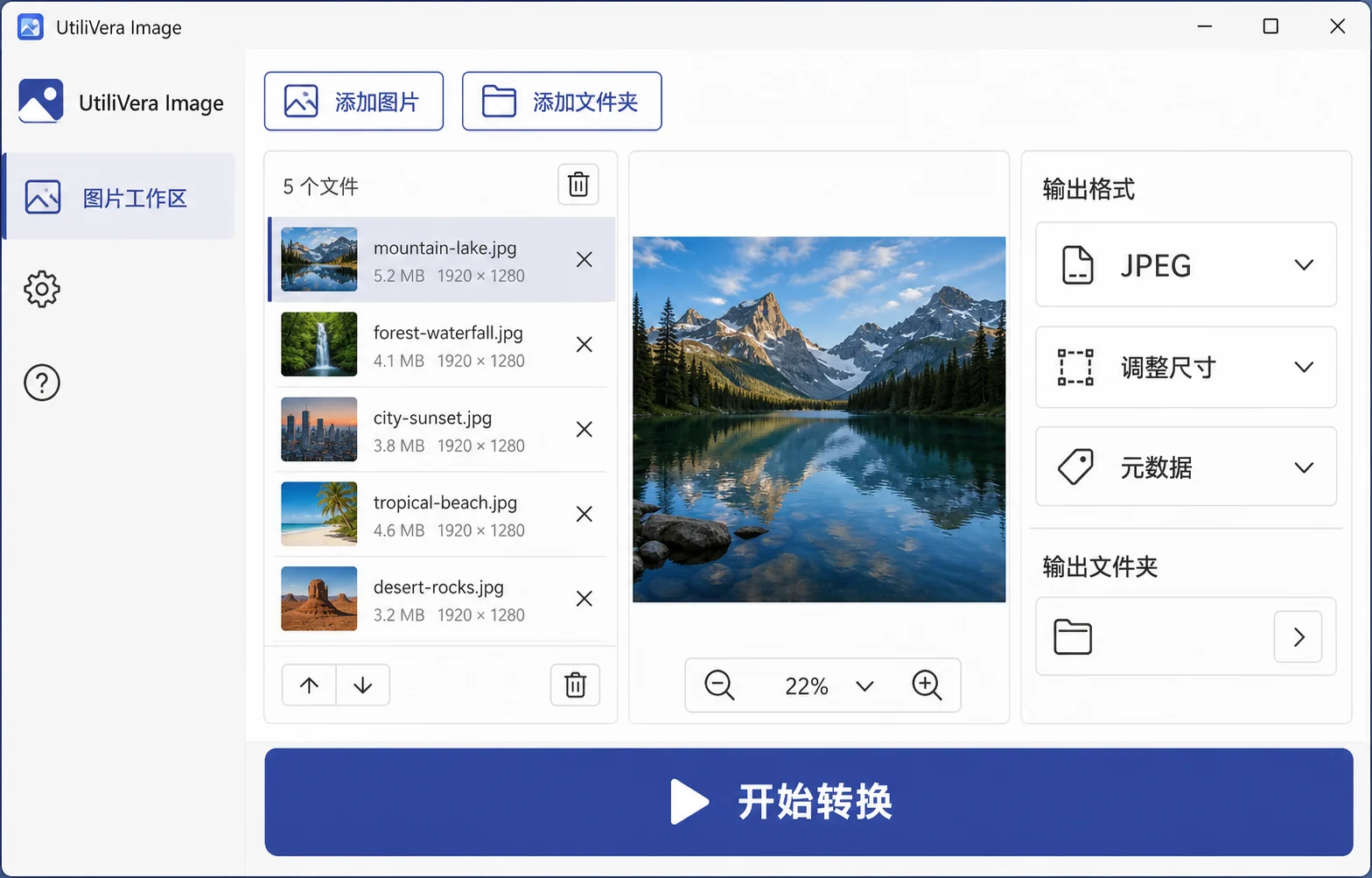
Add WebP files or their parent folder to UtiliVera Image, choose JPEG, set the background for transparent pixels, start near quality 82, and preview a detailed source. Review every destination in Output Plan, then convert locally without uploading the files.
Offline on Windows · complete folder batches · no account · no watermarkWatch the 42-second workflow tour →Image 0.8.1 is unsigned. Windows may show “Unknown publisher.” Download only from utilivera.com and verify SHA-256.Use this task in browserChoose the right workflow
Choose the WebP path that matches the batch
Keep the browser task and the Windows folder task separate so the simpler option stays simple.
On a small screen, swipe the table or focus it and use the arrow keys.
| Option | Best when | Know before using |
|---|---|---|
| Keep WebP | The destination already accepts WebP and its transparency or animation still matters. | Converting only for novelty adds another lossy generation and may increase bytes. |
| Browser tool | Convert up to 20 ordinary WebP files immediately without uploading them. | It handles a selected small batch, not recursive folders, mixed professional formats, or a persistent report. |
| UtiliVera Image | Convert recursive Windows folders with mixed formats, naming, metadata policy, output planning, and reports. | JPEG removes alpha and animation. Choose the background and inspect a representative result first. |
WebP is efficient on modern websites, but older editors, upload forms, office workflows, and client systems may still expect JPEG. A dependable batch conversion should make transparency visible, preserve useful color information, avoid repeated lossy saves, and keep every source file untouched.
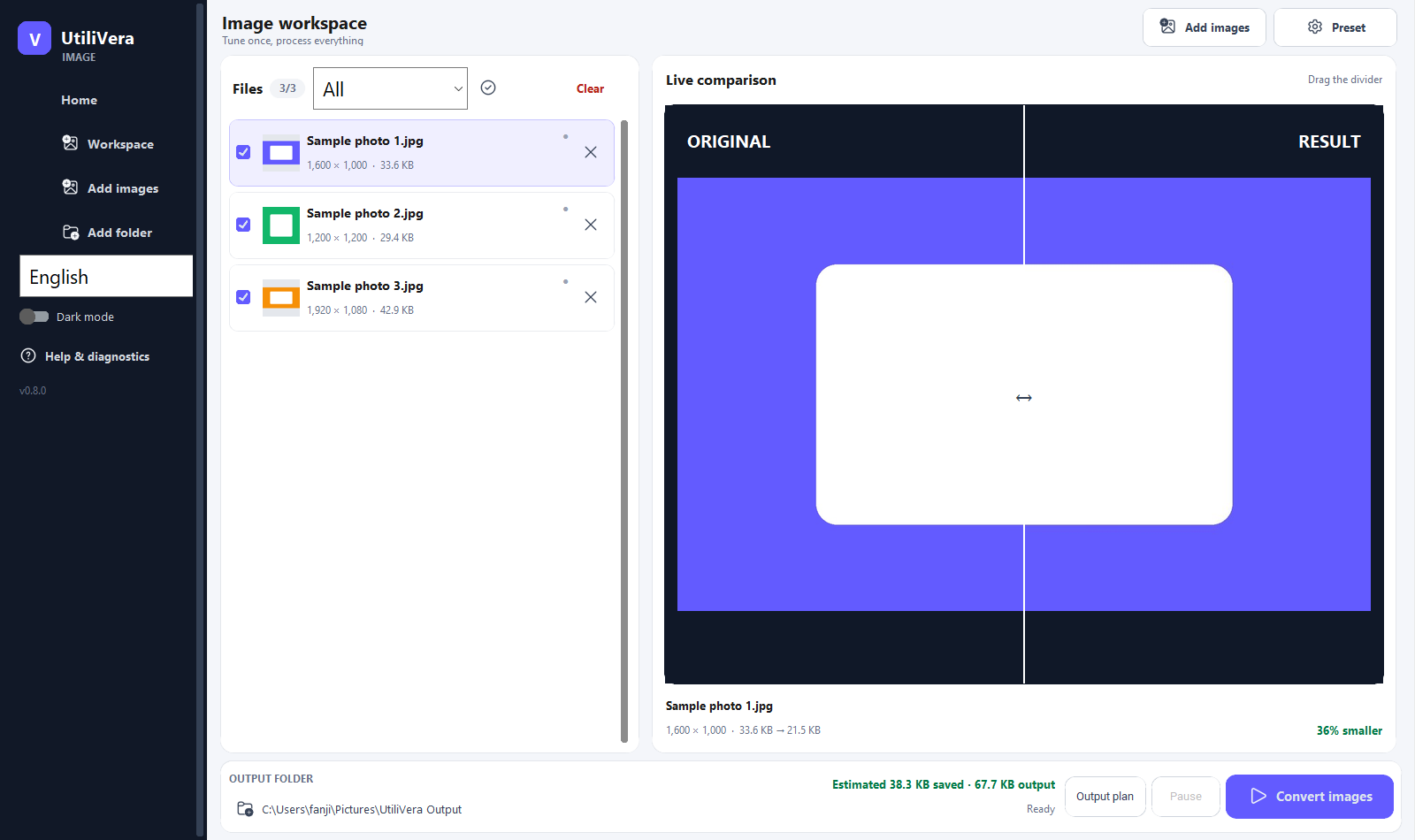 Open the full-size interface image
Reproducible task evidence
Input → parameters → output → verification
 Open full-size input
 Open full-size result
- Parameters
- WebP → JPEG · quality 90 · Remove GPS
- Verification
- The frozen executable decoded the 98,252-byte WebP and created a 193,097-byte JPEG; both SHA-256 values are published.
Confirm that JPEG is the right destination
Choose JPEG for photographs that need broad compatibility with websites, email, document software, printers, and older Windows tools. If a WebP contains transparency, sharp interface graphics, or text that must remain exact, PNG may be a safer destination.
Converting WebP to JPEG does not restore detail already removed by WebP compression. Keep the original WebP as the master when it is the best available source, and create JPEG delivery copies only for systems that require them.
Choose the transparency background before encoding
JPEG cannot store an alpha channel. Transparent WebP pixels must be composited onto a color, otherwise edges can appear black, dark, or fringed in the destination application. Choose white for many forms and marketplaces, or match the page or brand background where the image will appear.
Inspect soft shadows, antialiased logos, hair, and translucent overlays in the original/result comparison. These areas reveal an unsuitable background sooner than fully opaque regions.
Balance quality, dimensions, color, and metadata
Start around JPEG quality 82 with optimization enabled, then inspect fine texture, gradients, and high-contrast edges. Resize oversized sources before lowering quality aggressively; correct delivery dimensions usually save more bytes with fewer visible artifacts.
Preserve the ICC profile when predictable color matters. Select an explicit metadata policy—preserve, remove GPS only, keep capture dates, or remove metadata—instead of assuming conversion automatically makes a file private.
Convert folders without flattening or overwriting them
Add the top-level folder recursively and preserve its relative structure. A naming template can retain the original stem or add dimensions and an index when several sources would otherwise produce the same JPEG path.
Open Output Plan before conversion, use a separate destination, and retain the JSON, CSV, or text report afterward. The report maps every WebP source to its JPEG result, final size, duration, and any error while originals remain unchanged.
Verified release
Test the workflow, not a marketing promise.
Version 0.8.1 preserves the 97.1/100 Top-5 product baseline and adds exact-binary regression, archive, installer, localization, and real 0.8.0→0.8.1 upgrade evidence.
Read the audit summary →Frequently asked questions
Can JPEG preserve WebP transparency?+
No. JPEG has no alpha channel. UtiliVera composites transparent pixels onto the background color you choose.
Does WebP to JPG improve image quality?+
No. Conversion improves compatibility, not source detail. Use a sensible JPEG quality to avoid adding unnecessary new artifacts.
Can I convert nested WebP folders?+
Yes. Add the parent folder recursively and enable folder-structure preservation.
Sources checked
Format, workflow, and comparison details were checked against the primary or official pages below on August 9, 2026.