Batch without busywork
Drop files or folders, keep their structure, reuse presets, watch folders, or start a conversion from Explorer.
UtiliVera Image for Windows
Convert, compress, resize, rename, and clean image metadata in one calm workspace—completely free, with no uploads or account.
0.8.1 · 102.19 MiB · unsigned Inno Setup installer. Windows may show “Unknown publisher.” Download only from utilivera.com. If the download stops, retry this same official link; browsers with HTTP range support may resume, otherwise restart. Never run a partial file. SHA-256: 41819264CD8D64C28957E46353146B1665D87CF056CF97E95CB32F4E8F55B92A. Open the official verification guide.
Application audit: 97.1/100 · 0.8.1 size, regression, installer, and real upgrade evidence: PASS
Version 0.8.1 · Inno Setup · 102.19 MiB · no signup · no watermark · SHA-256 · Install options
One free tool for the jobs that usually need three
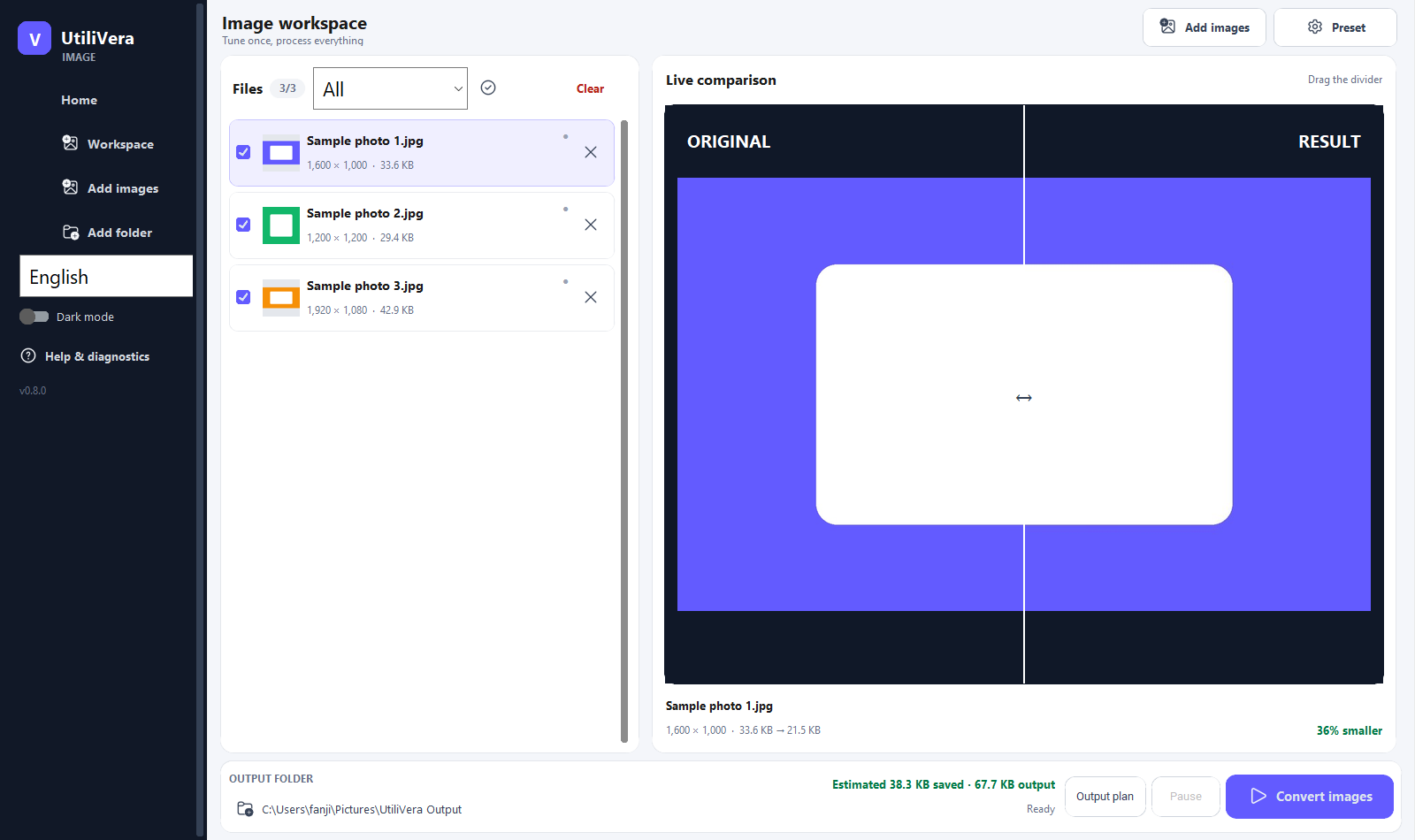
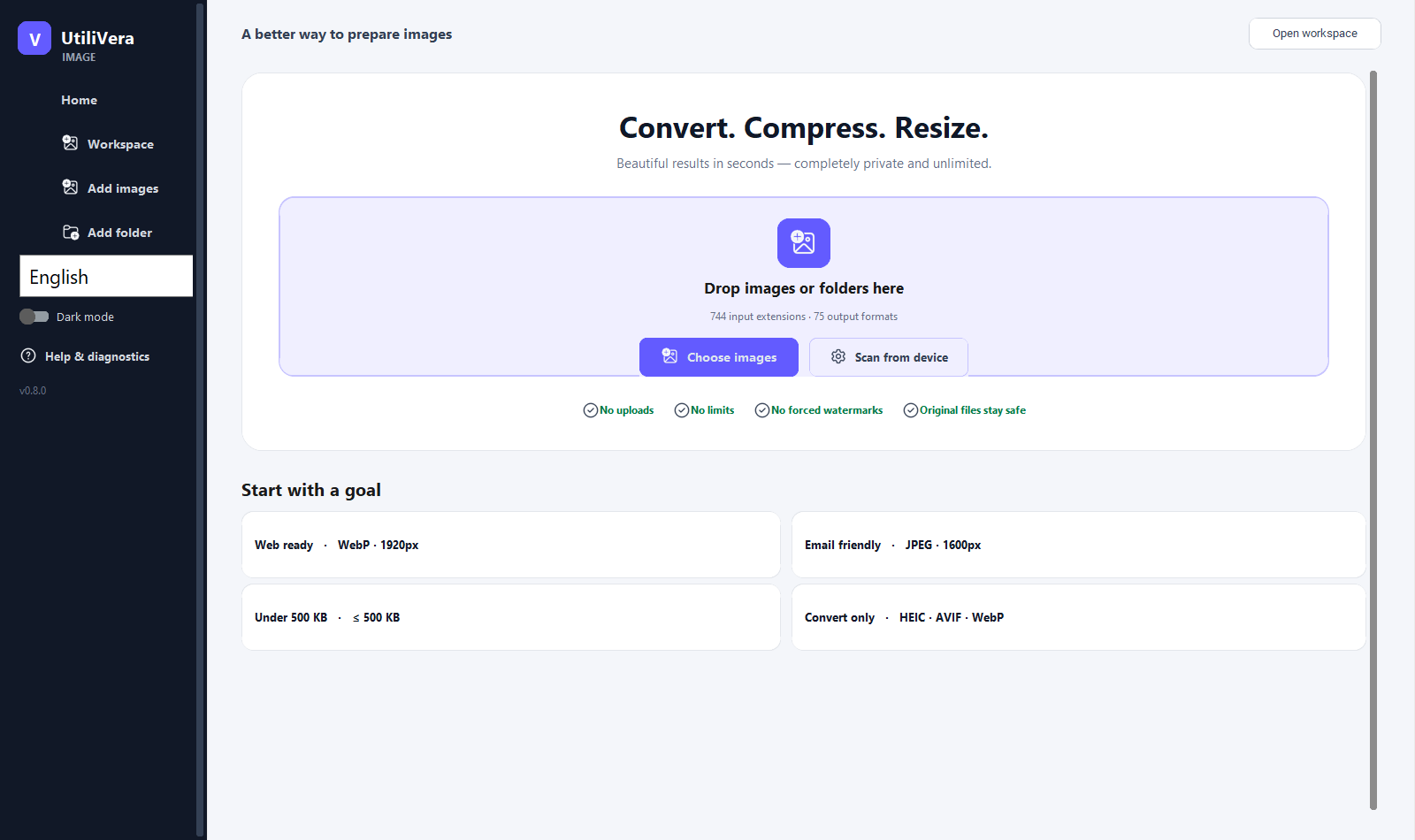
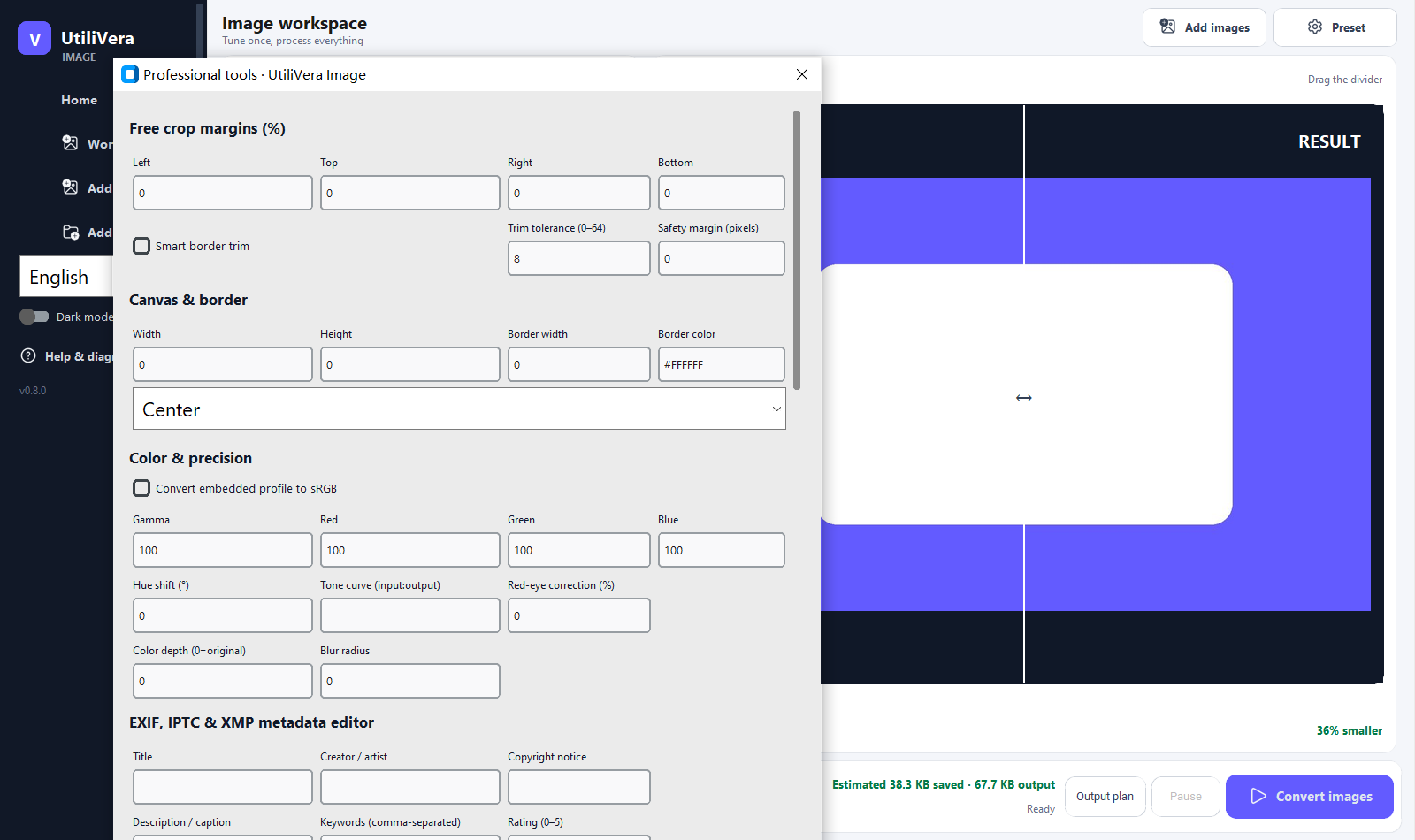
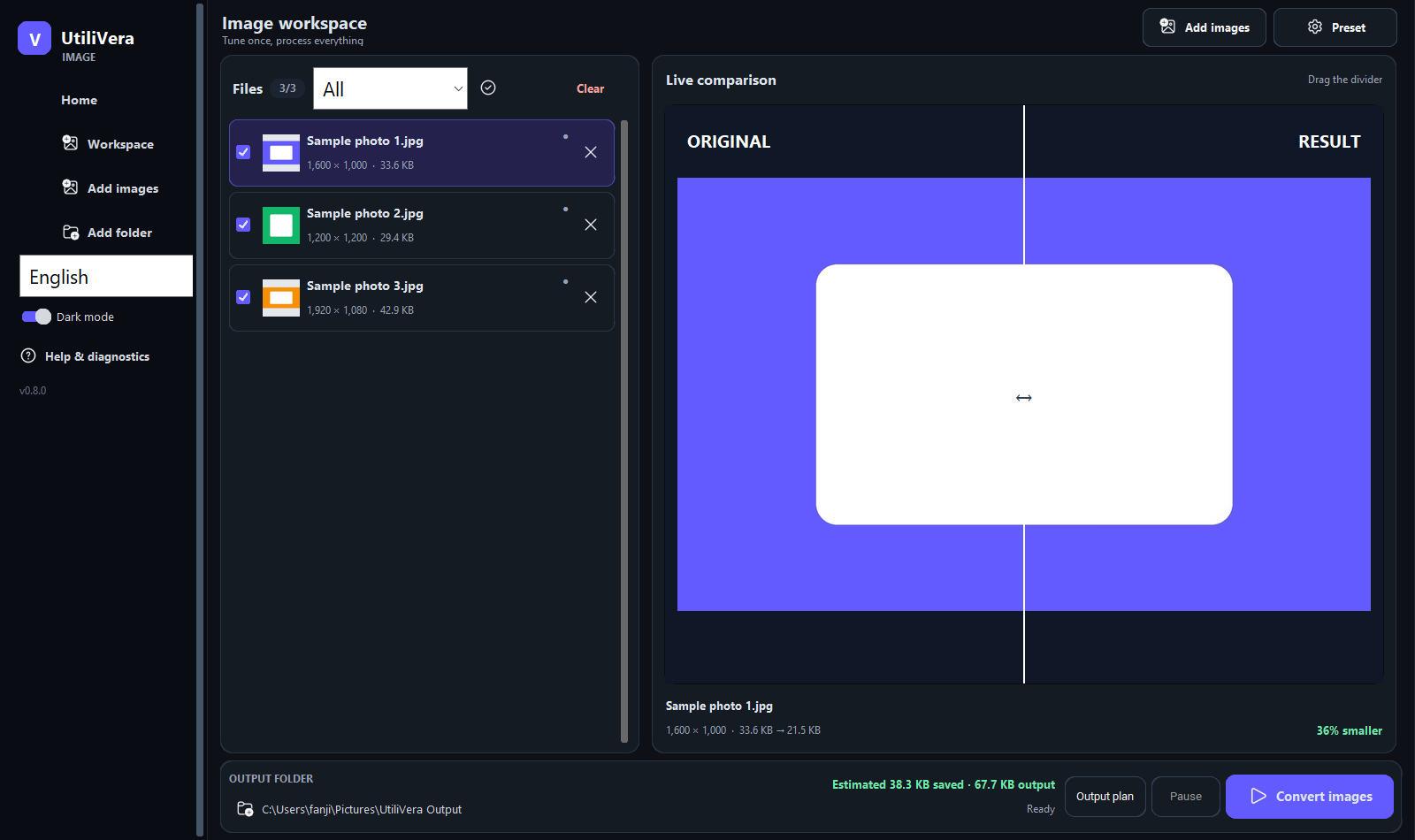
The real 0.8.0 interface
These are reproducible screenshots captured from the exact independently audited Windows executable.
Built around real image work
Start with a simple preset, then open professional controls only when the job calls for them.
Drop files or folders, keep their structure, reuse presets, watch folders, or start a conversion from Explorer.
Set a target such as 500 KB. UtiliVera finds the best practical quality instead of making you guess.
Compare original and result with a draggable divider before committing a whole batch.
Write title, caption, creator, copyright, keywords, and rating to EXIF, IPTC, and XMP—or remove GPS in one local batch.
Open modern images, RAW, PDF, DICOM, Office, OpenDocument, EPUB, Gerber/Excellon, CAD/GIS/3D, and 552 defined retro formats.
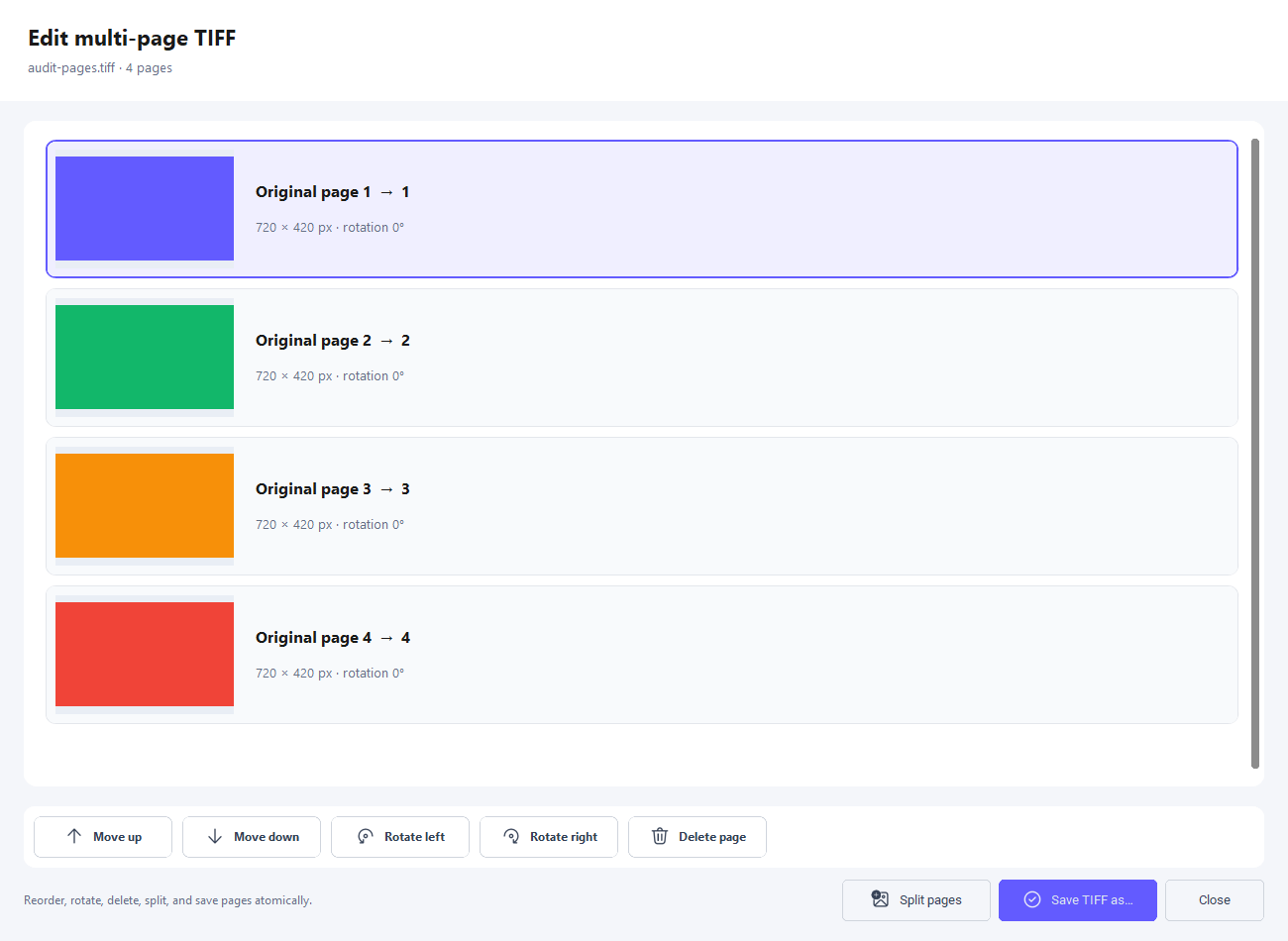
Scan with Windows WIA; visually reorder, rotate, delete, split, or save TIFF pages; and merge a queue into TIFF or PDF.
A clearer workflow
INPUT
OUTPUT
Your images
stay here
Private by design
UtiliVera Image processes files locally. You can preserve metadata, remove only GPS coordinates, keep capture dates, or remove metadata entirely—before a photo leaves your computer.
Practical image guides
Convert iPhone photos locally in a batch without uploading them.
Read guide →02A practical guide to WebP, AVIF, quality levels, and target file sizes.
Read guide →03Resize a full folder while preserving aspect ratio and folder structure.
Read guide →04Share photos without exposing where they were taken.
Read guide →05Choose the right format for websites, email, archives, and compatibility.
Read guide →06Keep private files on your PC while processing complete folders.
Read guide →07Control CAD layouts, units, layers, and grayscale before export.
Read guide →08Apply one tested recipe whenever a new stable file arrives.
Read guide →09Choose transparency handling, preview quality, and preserve complete folders.
Read guide →10Meet strict upload limits without guessing at an encoder quality value.
Read guide →11Preview metadata-aware names and resolve collisions before export.
Read guide →12Reorder, rotate, select, and merge document pages locally.
Read guide →13Handle transparency, quality, color, metadata, and folders deliberately.
Read guide →14Create compatible JPEG copies without uploading modern source images.
Read guide →15Choose readable resolution, ordered names, and private local rendering.
Read guide →16Rasterize icons and vector assets at intentional pixel dimensions.
Read guide →17Create delivery copies from CR2, CR3, NEF, ARW, DNG, RAF, and more.
Read guide →Questions, answered
Still unsure? The Inno Setup installer supports a clean uninstall, and the release page publishes the exact checksum before you install.
Yes. The core desktop app is free, has no account requirement, and adds no watermark.
No. Image conversion and metadata processing run locally on your Windows PC.
Yes. Add folders recursively, preserve their structure, preview planned output names, and run the batch with multiple workers.
Yes. It reads HEIC/HEIF and AVIF and can export HEIF, AVIF, WebP, JPEG, PNG, TIFF, and other formats.
No. Outputs are written to a separate folder and committed atomically. Existing-file policies are explicit.
UtiliVera Image for Windows
Free, private, independently audited, and currently distributed as an unsigned Inno Setup installer.
Review checksum & download details →